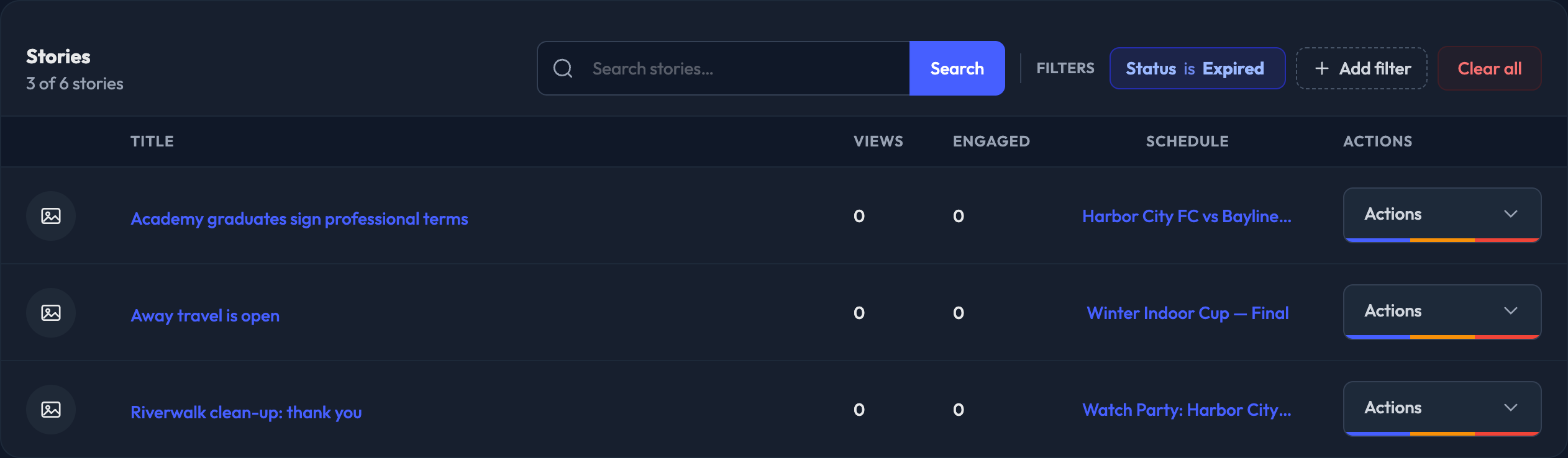
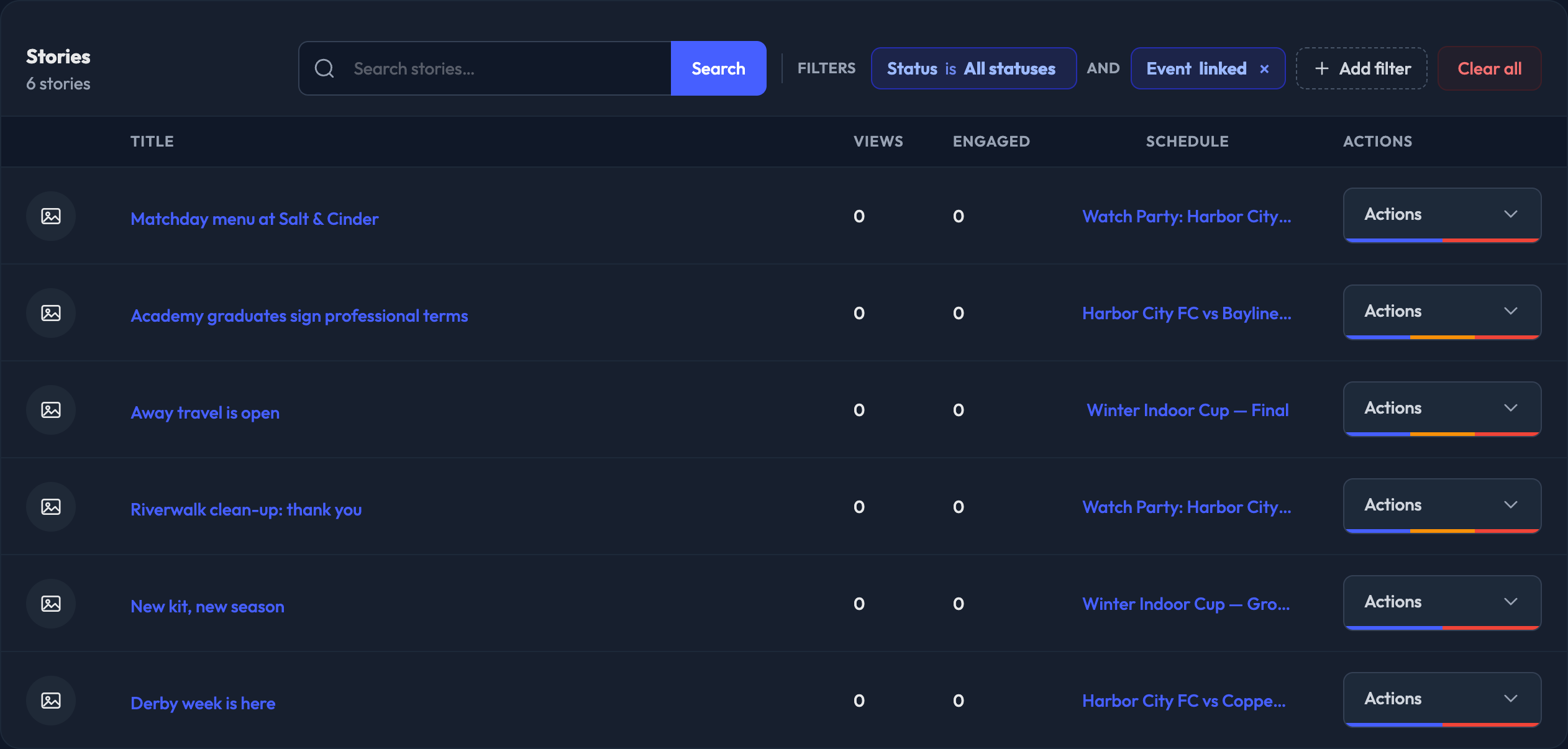
View your Stories list here in the admin
Stories are interactive elements that put content in front of your members for fan engagement, including trivia, polls, and image content.
Stories are split into three lists, one for each kind of story:
Communications › Stories — content stories (headline, body copy, image, link).
Point Earning › Trivia — trivia questions that award points for a correct answer.
Point Earning › Polls — poll questions that award points for answering.
Each list works exactly the same way, and each has its own New button. You never pick a story type on the form — the list you start from decides it.
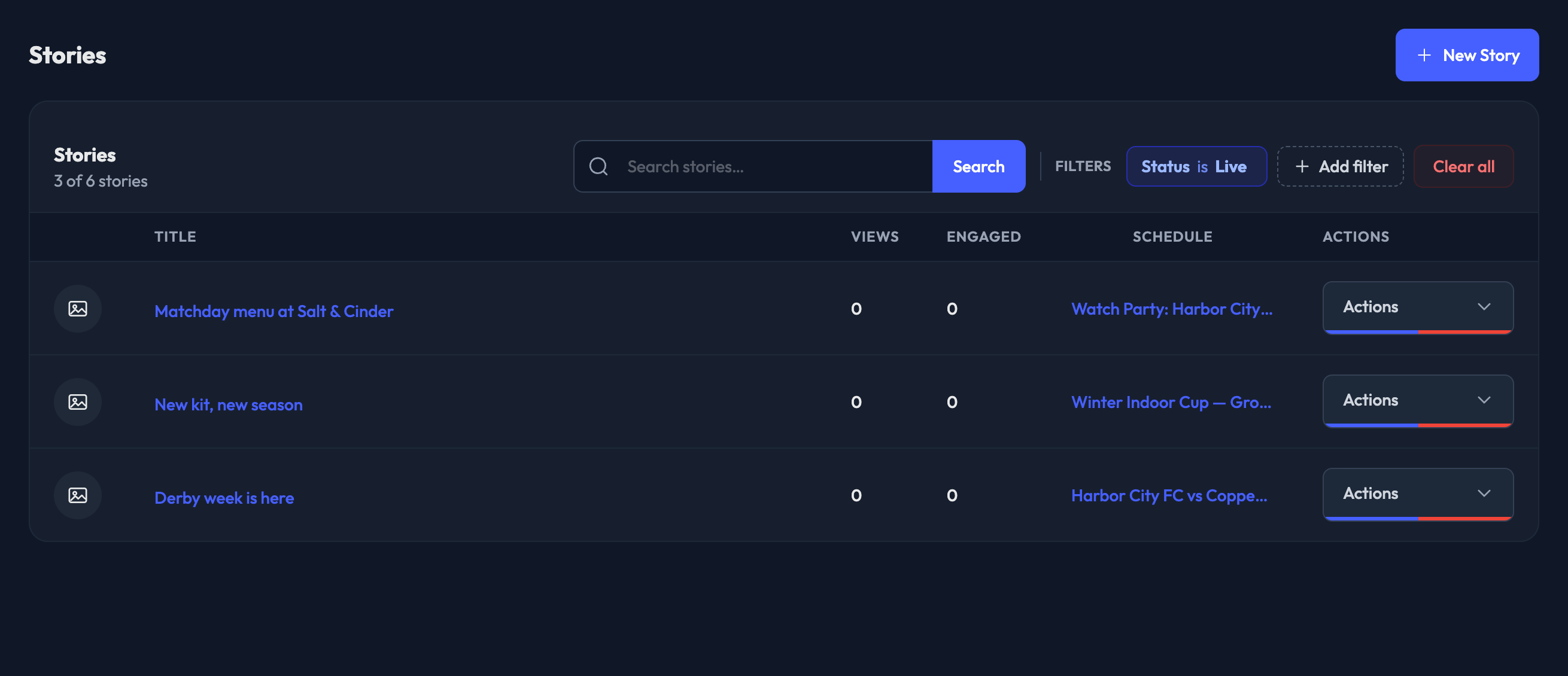
Every row carries:
A thumbnail of the story.
The Title — for trivia and polls this is the question itself.
Views — how many members saw the story.
Engaged on the Stories list, or Responses on Trivia and Polls. Trivia rows also show % correct and % incorrect underneath.
Schedule — when the story goes live and when it expires. If the story is tied to an event, the event name shows here instead, because the event decides the window.
Actions.
The line under the list heading tells you how many stories you are looking at out of the total for that list, so you can always see when a filter is narrowing things down.
Status is a filter, not a separate tab.
Status — Live (the default), Upcoming, Expired, or All statuses. The list always shows a Status chip, so a filter is never applied silently.
Event — linked (stories tied to an event) or not linked.
There is also a search box that matches the headline, the body copy, and the trivia or poll question.


Open the Actions menu on any row for:
1. View — opens the story's page, which is also where you edit it.
2. Responses — trivia and polls only. Opens the full response list.
3. Go live — on anything that is not currently live. Publishes the story to members straight away.
4. Expire now — on a live story. Pulls it from members immediately.
5. Delete.

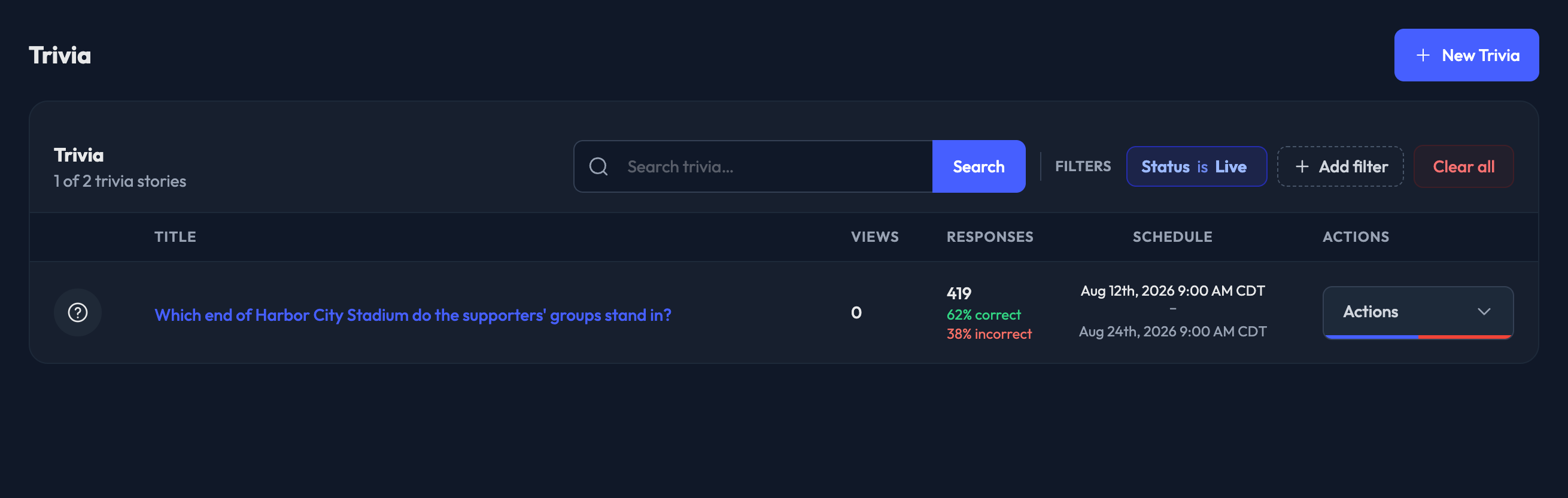
View your Trivia list here in the admin
Point Earning › Trivia lists your trivia stories. Alongside views you get the response count, and the percentage of members who answered correctly and incorrectly.
Open a trivia story to see its response analytics — total responses, correct versus incorrect, and a breakdown by answer. Full response list takes you to every individual response, with a Download CSV button.
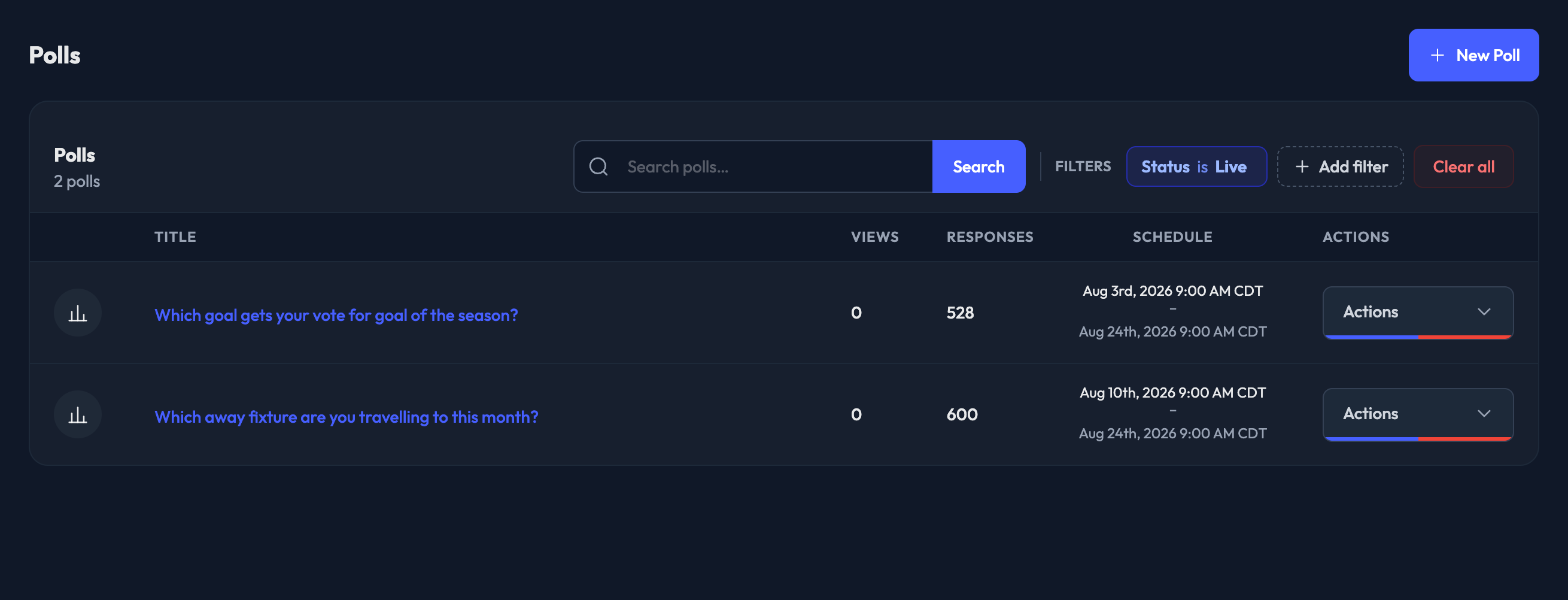
View your Poll list here in the admin
Point Earning › Polls lists your poll stories, with the number of responses each one collected.
Open a poll story for total responses, the number of options, and the leading answer. Full response list gives you every response, unique responders, responses by day, responses by answer, and a Download CSV button.
Set the Event filter to linked to see only stories attached to a specific event. These stories take their schedule from the event they are tied to, which is why the event name appears in the Schedule column instead of dates.
Set the Status filter to Expired to review everything that has finished running, along with its views and engagement.