
Record attendance for a member with an Attendance import — Reports & Imports › Imports.
Sometimes a member attends and the check-in doesn't land: a technology error, or an event run through an external system that isn't integrated with Fanmaker for your program. The Attendance import is how you give them the record after the fact.
It works for one member or for thousands — a one-row file is perfectly fine, so this is the route for a single fix as well as a bulk one.
Steps
1. Get the event's ID. Open the event from Events › Events — the dashboard header shows it as "Event #…".
2. Go to Reports & Imports › Imports.
3. Under "What are you importing?", pick Attendance. The full column guidance for this import appears right below the picker.
4. Click "Download example CSV" to get a file with every column this import takes and one example row to replace.
5. Build your file:
The first column identifies the member. Use whichever identifier you have — email, username, user_id, member_id, student_id, ticketmaster_id, cust_id, pid, oktaid, or phone_number.
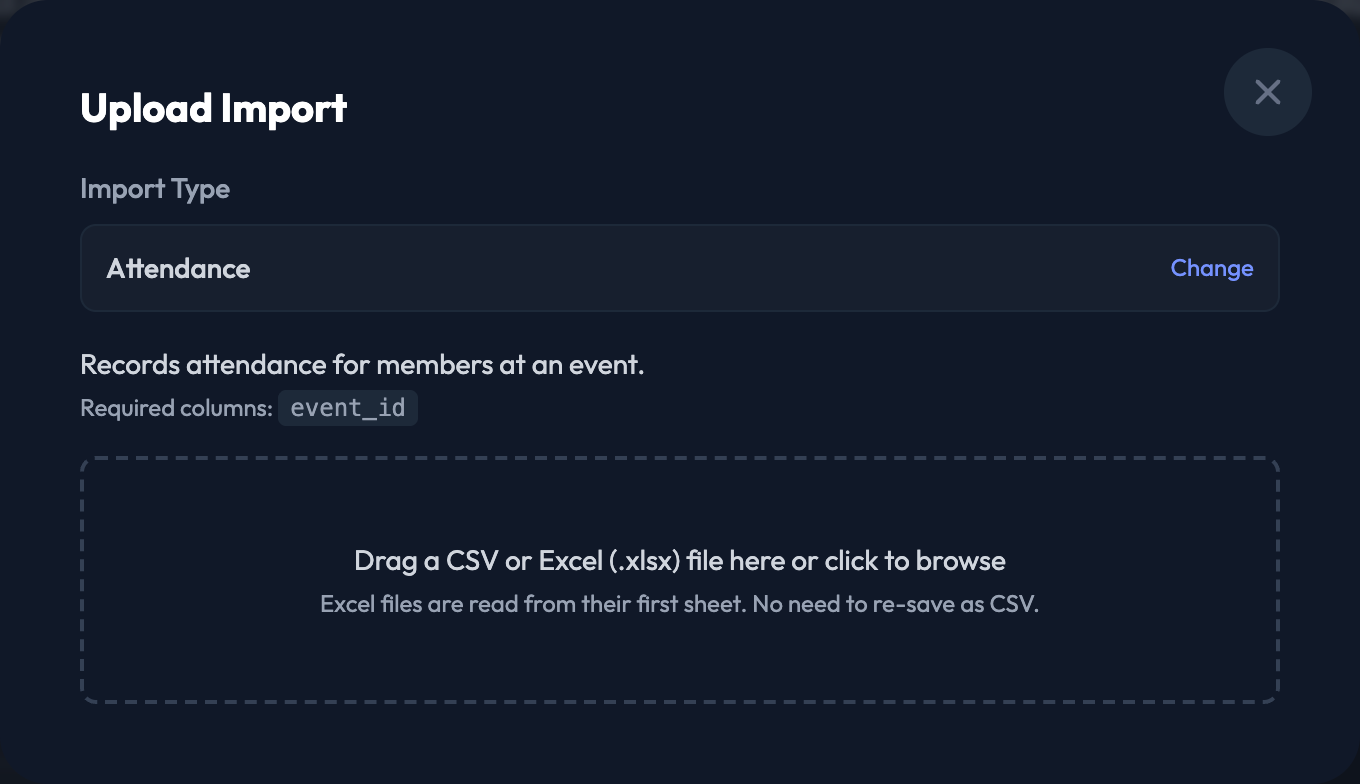
event_id is required — the event to record attendance at.
So a file recording one member at event 52 is just:
Header row: email, event_id
One row: [email protected], 52
6. Click "New Import" and upload the file.
What the Members Earn
Points awarded match that event's Upload Points setting.
