Follow-Up Questions (here in the admin, under Rewards › Store Settings › Follow-Up Questions) let you collect extra information from members when they redeem a prize. They're perfect for asking which event a member will pick their prize up at, designating a friend or family member for pick-up, or collecting custom text for a personalized prize.
The page is a site-wide library: you write a question once, then attach it to any prize that needs it.
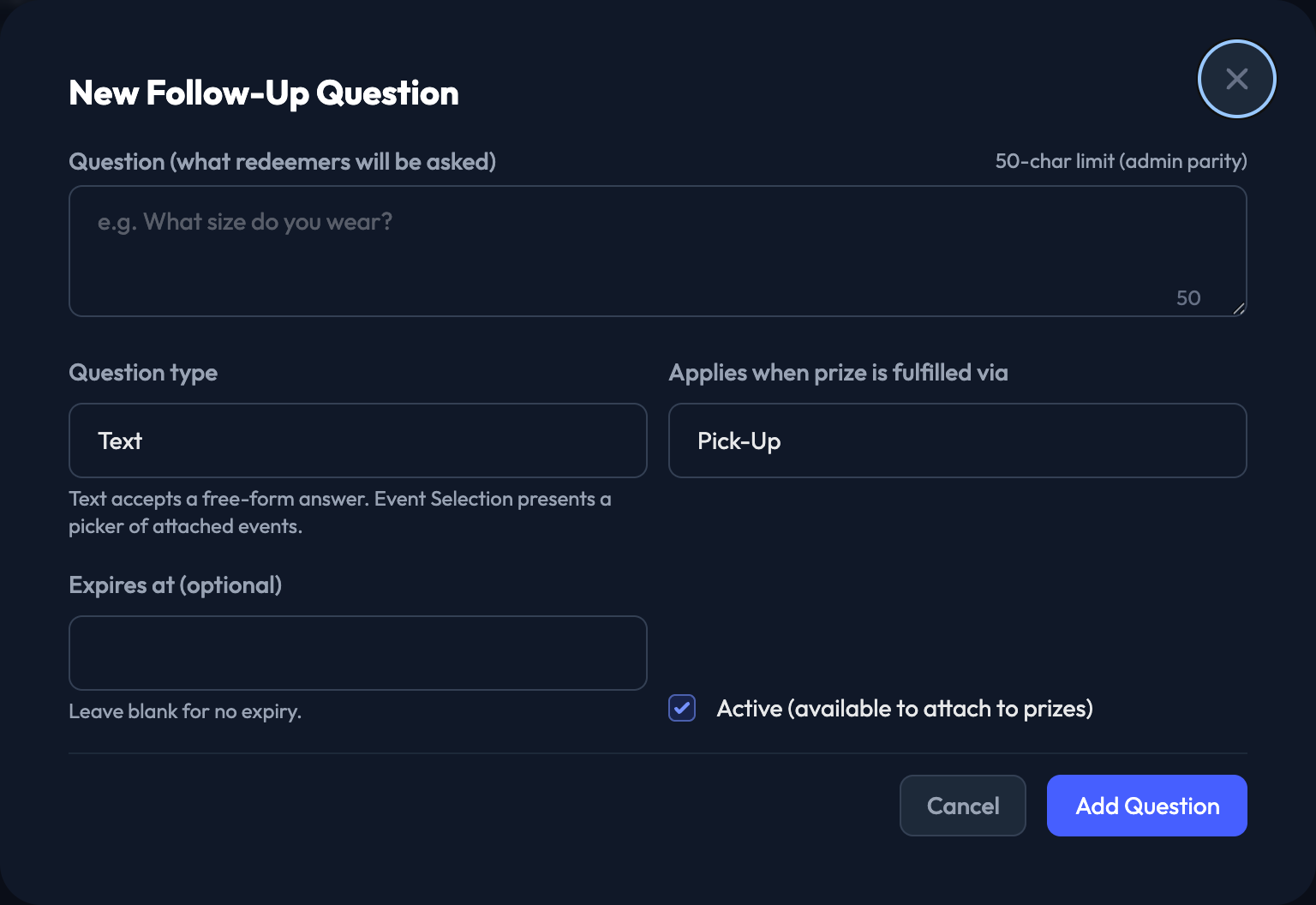
1. Open the library. Go to Rewards › Settings › Follow-Up Questions and click New Question.
2. Write the question. This is what the member is asked at redemption — for example, "Which event will you attend?" or "Who is picking this up?" Keep it to 50 characters.
3. Choose the question type.
Text — the member types their own answer.
Event Selection — the member picks from a list of upcoming events.
4. Choose when it applies. Applies when prize is fulfilled via sets whether the question shows on Pick-Up or Shipping orders.
5. Set an expiry (optional). Expires at is the date and time after which the question stops being asked — handy for questions that are only relevant to one event or one season. Leave it blank for no expiry.
6. Leave Active checked so the question is available to attach to prizes, then click Add Question.


Each row shows the question's Type, Delivery and Status (Active, Inactive or Expired). Use the Actions menu on a row to Edit, Deactivate/Activate or Delete it. Deleting a question also removes it from every prize it was attached to.
1. Open the prize. Go to Rewards › Prizes and open the prize you want, or create a new one.
2. Check the fulfillment type first. In the Fulfillment card, make sure the prize uses the delivery method your question was built for — Pickup for a Pick-Up question, Shipping for a Shipping one. Other counts as pickup here, because it's the same collection method under your own label, so a Pick-Up question works on an Other prize too.
3. Attach the question. Open the Follow-Up Questions card and pick your question from Add a follow-up question. Each option shows its delivery type and expiry so you can tell similar questions apart.
4. Save the prize. The questions you attached are now asked whenever a member redeems it.
At redemption the member is prompted with the question (or questions) you attached — for example:
Which event will you attend? (member picks: Volleyball vs. Georgia)
Who is picking this up? (member enters: John Doe)
Answers are recorded automatically:
On the order — open the order and look for the Follow-Up Question Responses card, which lists each question with the member's answer.
In the Orders Report — responses come through in the report's follow_up_questions column, so you can hand the whole list to your fulfillment staff. Request it under Reports & Imports › Request a Report.
