
Please use the instructions below to utilize digital tickets purchased through your prize store for entry into an event via your Check-In Kiosk.
Setup Instructions
Create a Prize Item
Set up a new prize item.
Under Delivery Method, select Digital Tickets.
Tie It to a Fanmaker Event
Choose the Fanmaker event that this prize item should issue tickets for.
Make sure the Fanmaker event is created before setting up the prize item.
Edit Digital Ticket Instructions (Optional)
You can customize the email instructions sent to users.
Our default messaging is in place if no changes are made.
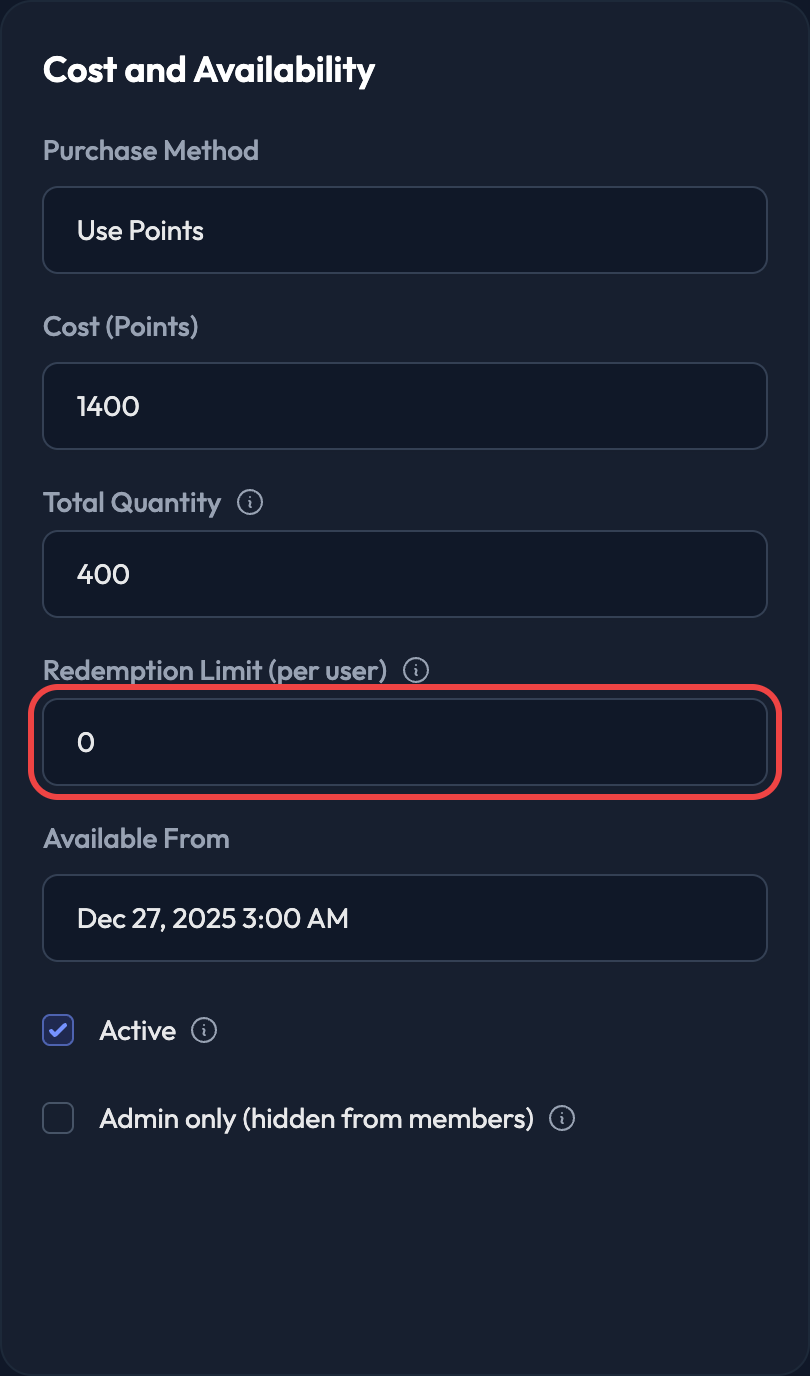
Set Redemption Limits
The Redemption Limit within the prize form determines how many digital tickets a user can redeem.
For example, if you want to limit this to 1 per person, set that field to 1.
What to Expect at Check-In
Here's what users and staff will see on the kiosk during check-in when digital tickets are enabled:
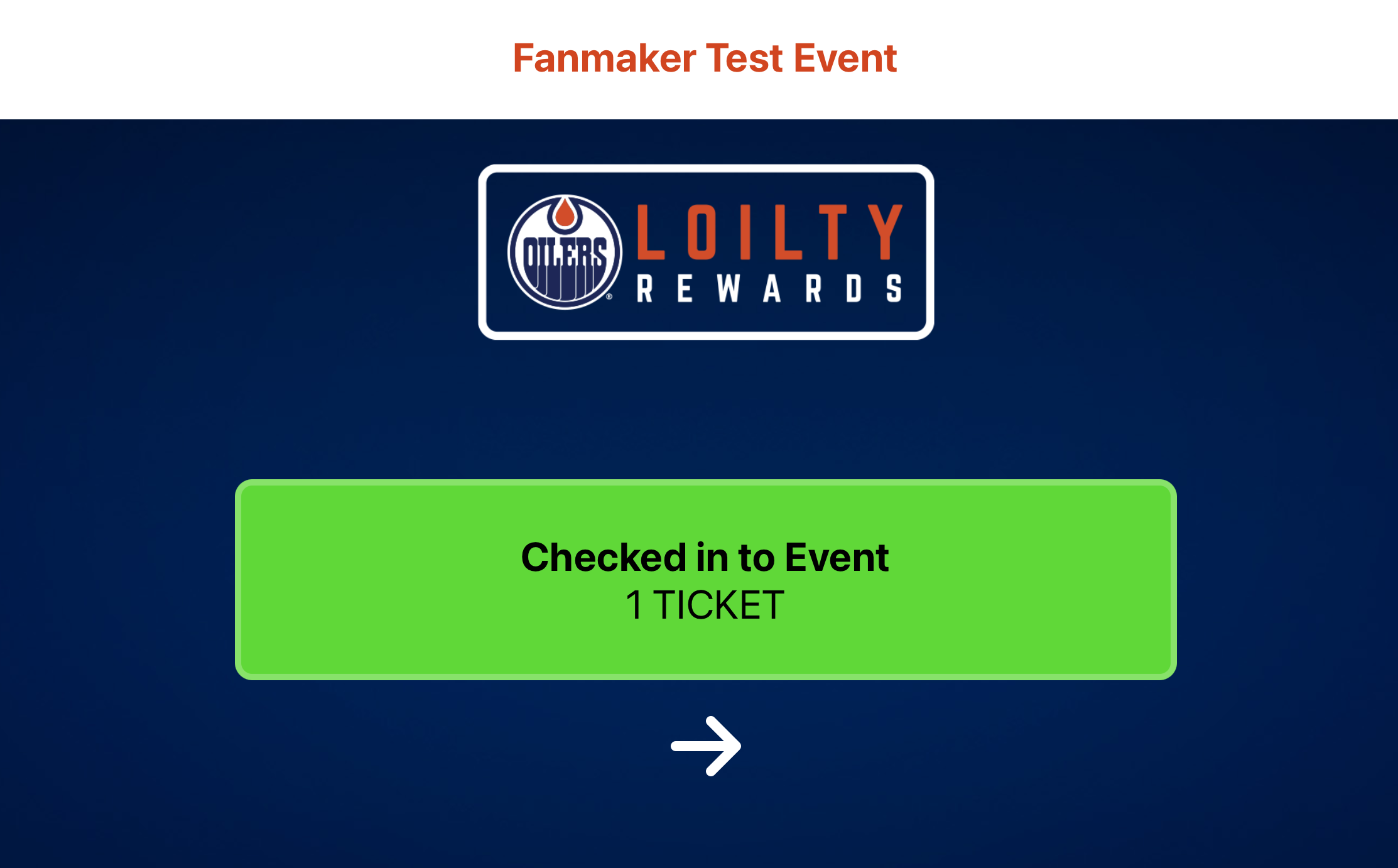
Valid Ticket – 1 Ticket
Green box with: "Checked in to Event – 1 Ticket"
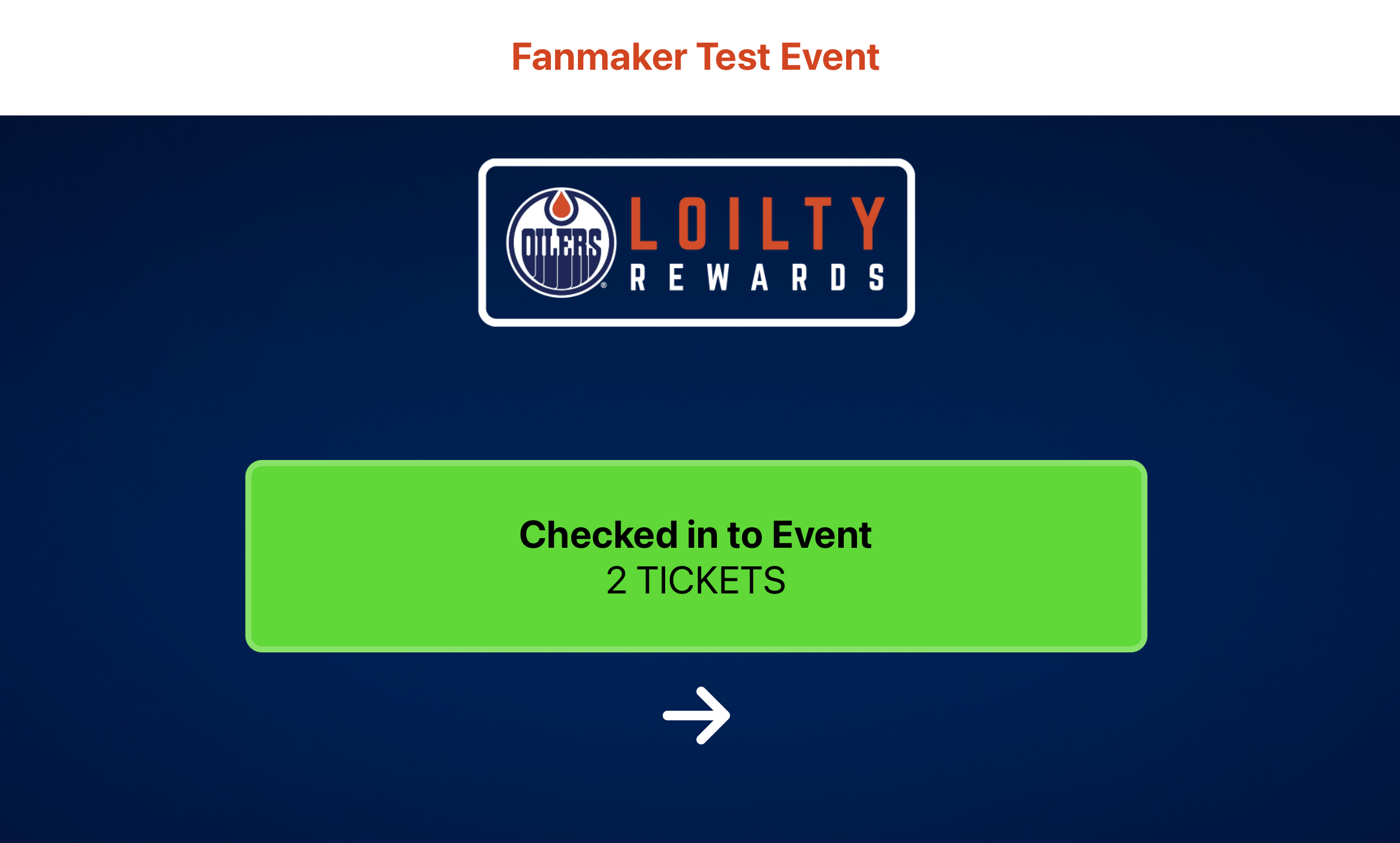
Valid Ticket – Multiple Tickets (e.g. 2)
Green box with: "Checked in to Event – 2 Tickets"
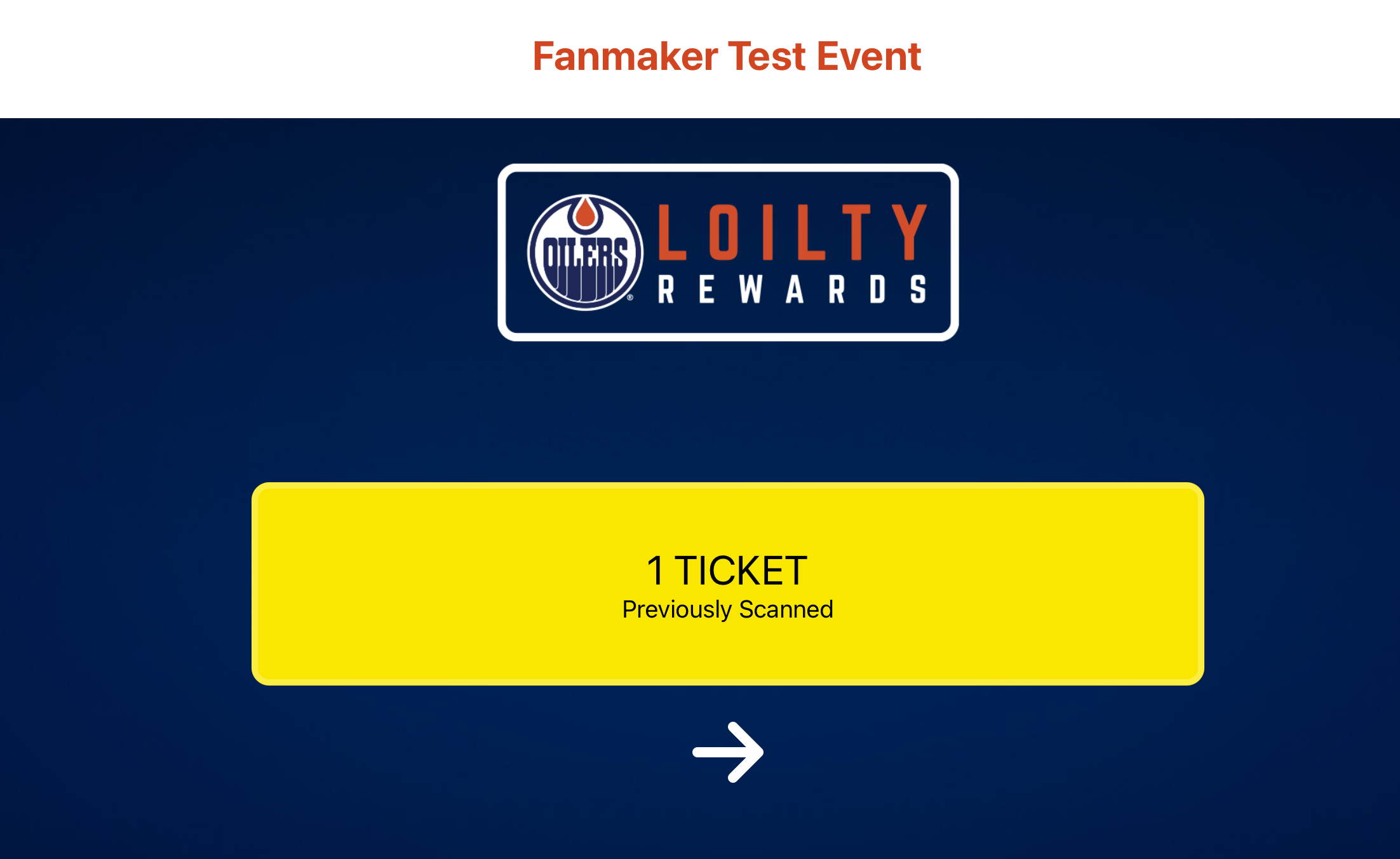
Already Checked In
Yellow box with: "1 Ticket Previously Scanned" (or 2 Tickets, etc.)
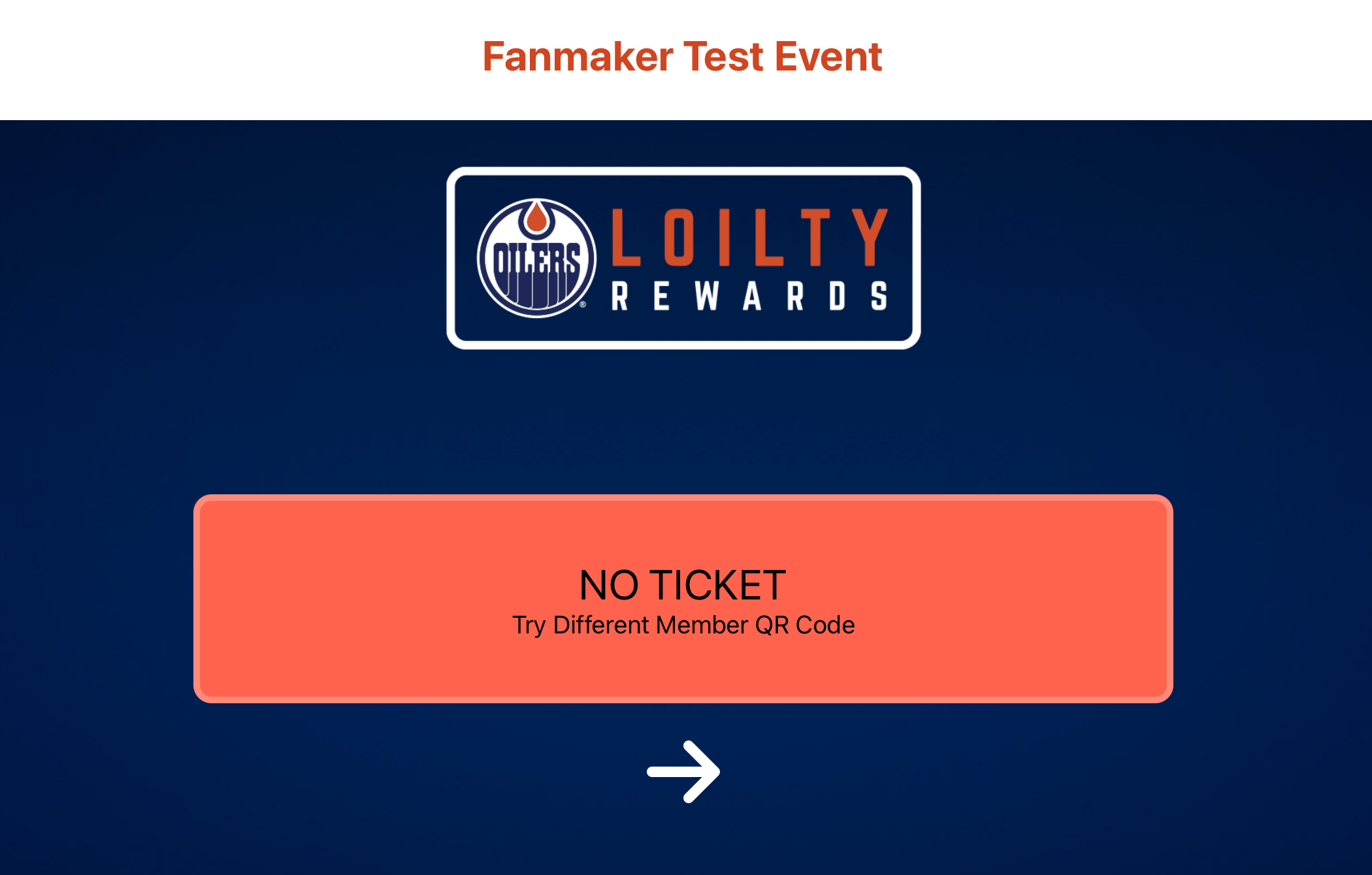
No Ticket
Red box with: "NO TICKET – Try Different Member QR Code"
For setting up your Check-In Kiosk on your iPad, please utilize our Kiosk Setup Help Doc for further instructions.