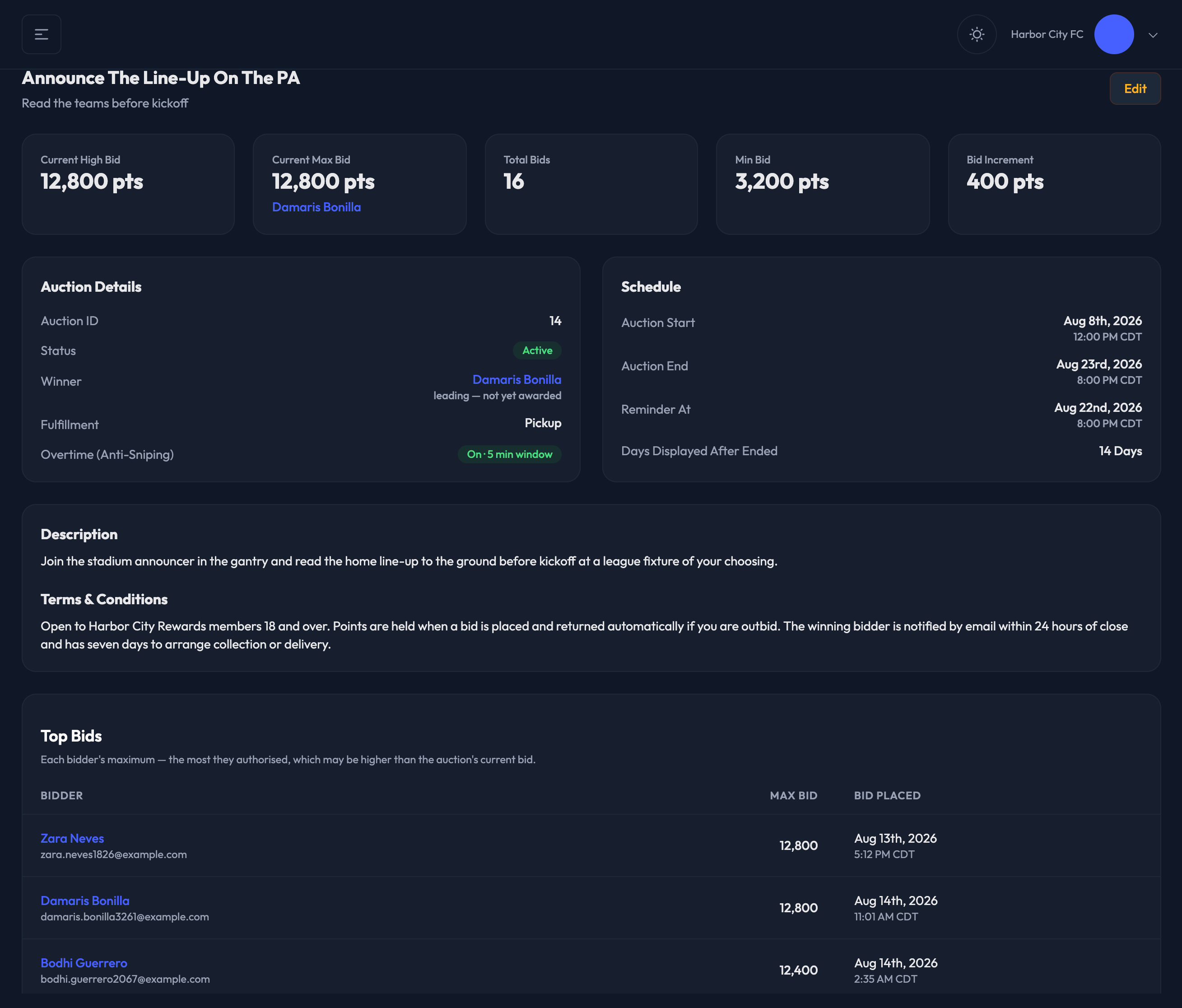
Visit the Auctions page here in the admin — find it under Rewards › Auctions.
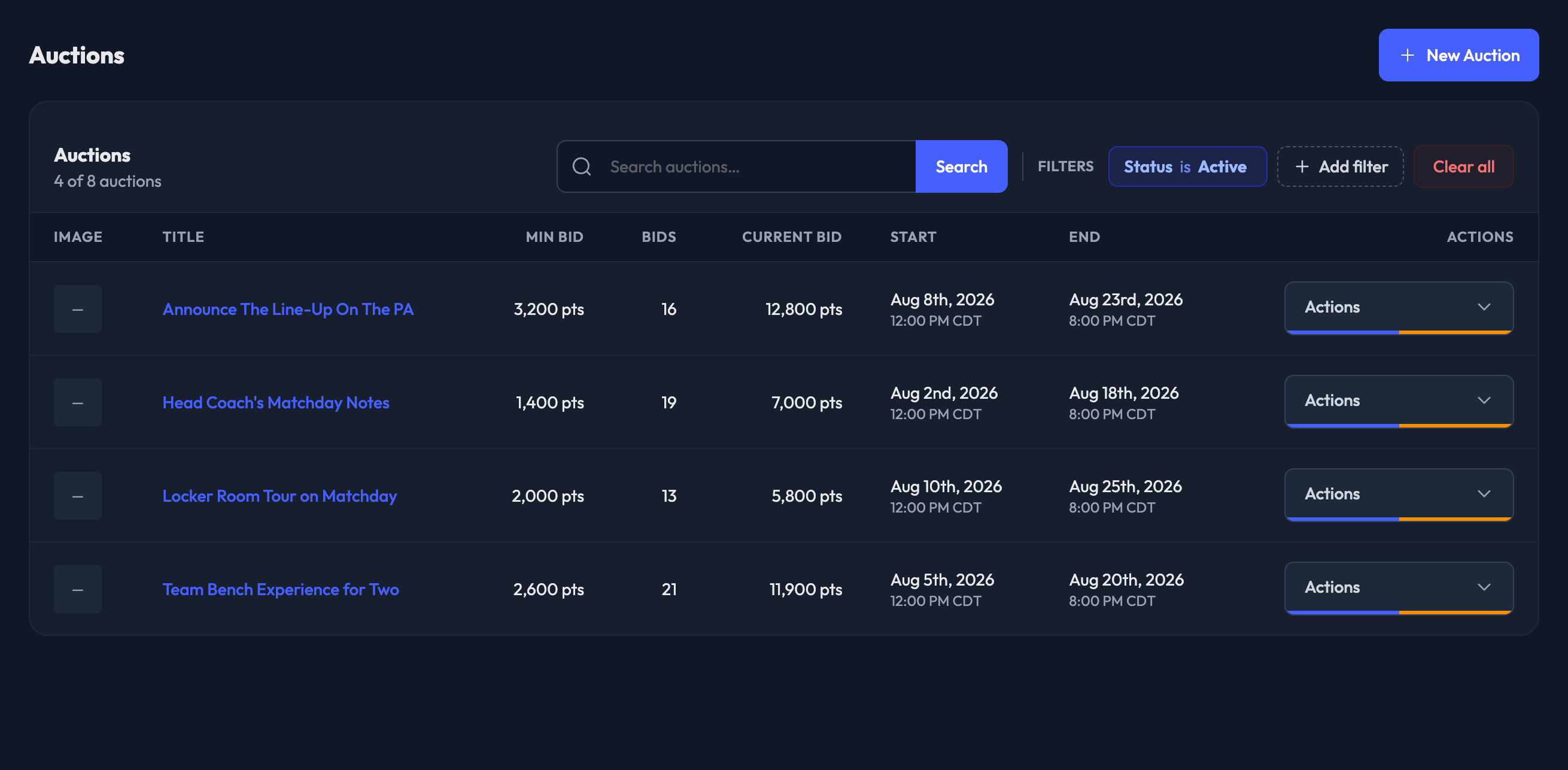
The table header carries a search box and a Filters builder side by side.
Search matches an auction's title or description, and it also matches an auction ID exactly — so if you've got an ID from a support ticket, type the number. As you type, suggestions appear underneath; picking one fills the box, and you press Search to run it.
Filters adds a Status chip. The page opens on Active, so you're looking at your live work rather than every auction the site has ever run. Change the chip to see something else:
1. Active
2. Upcoming
3. Ended
4. Closing out — ended, but no winner has been awarded yet. These are the ones that need attention.
5. All auctions — no status filter at all
Super admins get one more option, Trashed, which lists deleted auctions so they can be brought back. When you're on it, a note above the table reminds you that deleted auctions are hidden from members and that you restore one from its edit form.
1. The Image thumbnail
2. The Title — click it to open the auction
3. Min Bid — the points the first bid must meet or exceed
4. Bids — how many bids have been placed on that auction
5. Current Bid — the highest bid so far
6. Start — the date and time it opens, in your site's time zone
7. End — the date and time it closes, in your site's time zone
There's no Status column — the Status chip above already says what you're looking at. The two states that can still surprise you inside a filtered list do show on the row: a Closing out badge under the title, and a Deleted badge on a trashed auction.
Each row has an Actions menu:
View — open the auction's detail page
Edit — open the full auction form
Duplicate — start a new auction prefilled from this one. Nothing is saved until you click Create Auction.
Delete — only offered when the auction can actually be deleted: it has no bids, it isn't already deleted, and you're a super admin. Once a bid is in, points are held in escrow against the auction, so it can't be removed — end it instead.