
Banner Ads
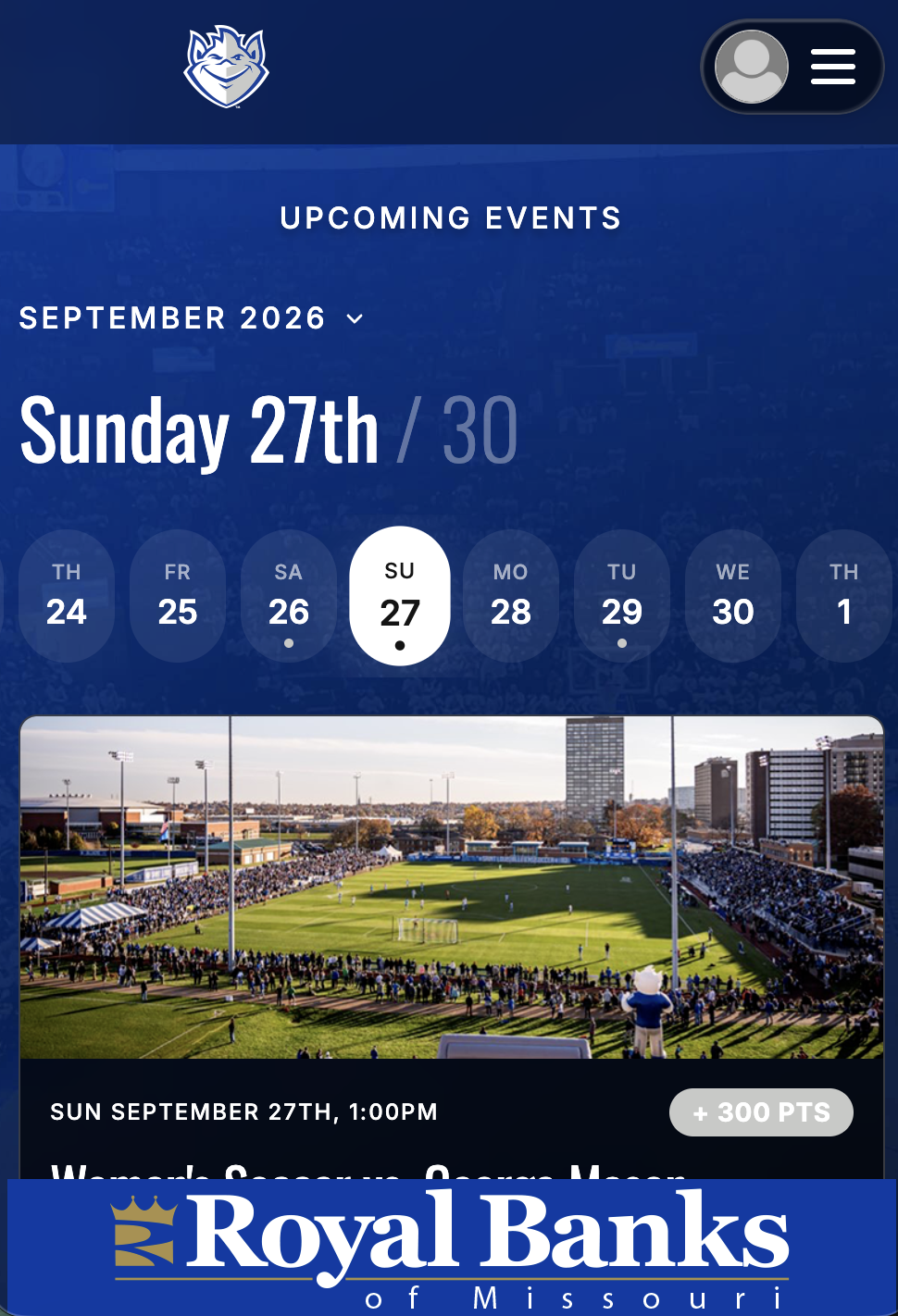
Banner ads are rectangular images displayed on the pages you select. You'll find them at Design & Content › Ads in the admin.
This is a great opportunity to present the sponsors of your Prize Store, your CrowdCameo Galleries or your Notifications Inbox — pick exactly where the banner runs using the Pages selector.
Once an ad is live, the Ads table shows its total Impressions and total Clicks. The Pages column shows which pages each banner is running on, or All pages if you haven't narrowed it down.
New Banner Ad
1. From the Ads page, click New Ad.
2. For Type, choose Banner Ad. The size requirement appears just below the dropdown.
3. Upload your Image — a rectangular image, 960x150.
4. Add the Click-through URL for your ad.
5. Under Pages, select the pages you'd like this banner to display on. Ctrl-click or Cmd-click to select more than one, and leave them all unselected to show the banner on every page.
6. Tick Active to make the ad live.
7. Click Create Ad.

Editing and deleting
Edit on any row lets you swap the image, change the URL, change which pages the banner runs on, or switch it off — leave the image field blank to keep the current one. Clearing every page in the selector puts the banner back on every page.
Delete removes the ad after a confirmation.