The Orders page — Rewards › Orders in the admin — is where you'll find every redemption from your program's members.
The page opens on your working queue: Open orders. Widen or narrow it with the Filters chips beside the search box.
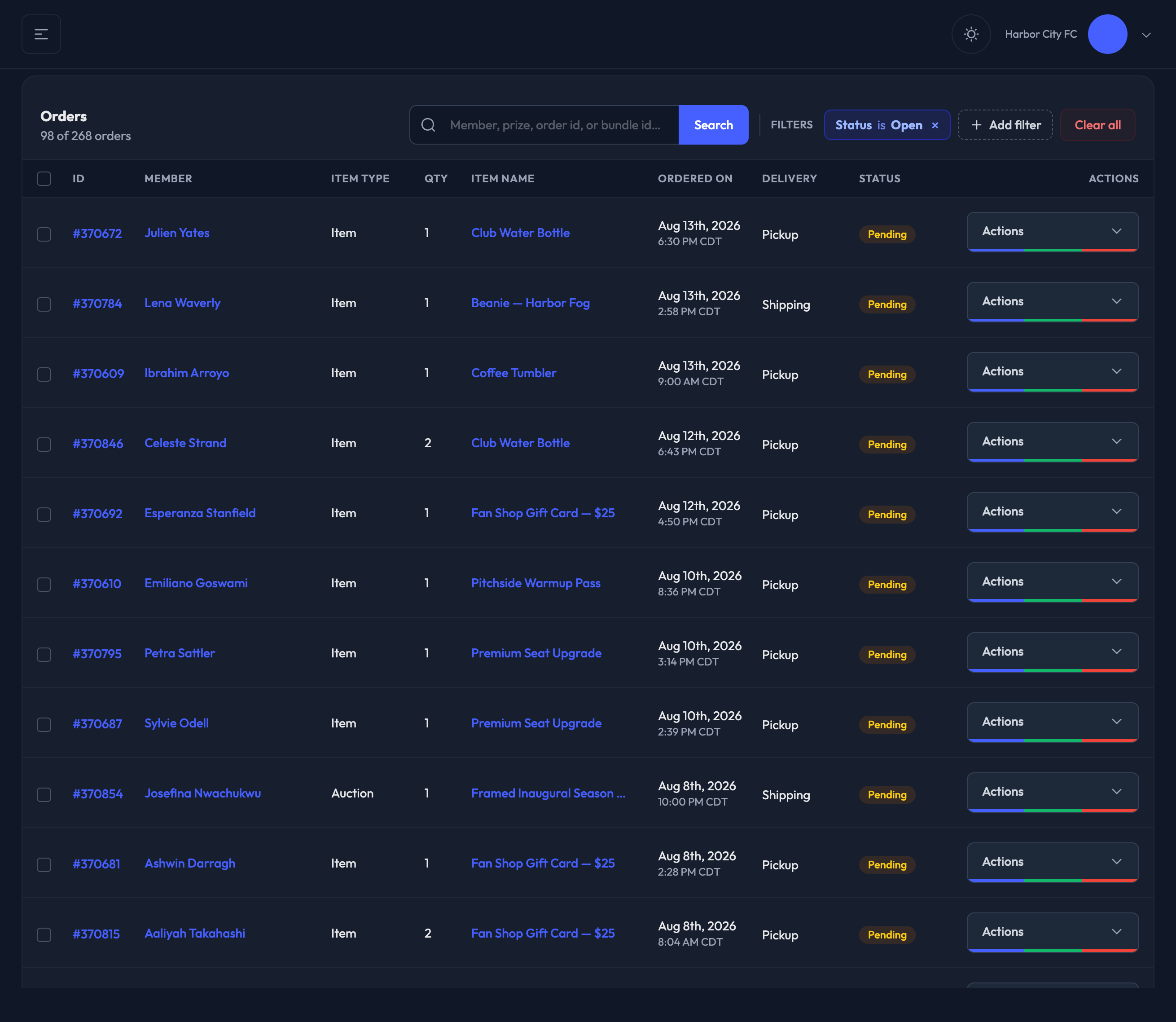
Three filters are available, and they combine — so "Open and Shipping" is one question, not two.
Status
Open
Completed
Canceled
Delivery
Shipping
Pickup
International
Loaded Value
Payment
Points
Credit card
Pay via Invoice


You can also search using the search bar in the card header: a member's name or email, an order or bundle id, the item they ordered, or a tracking number or shipping address.
1. Open the order.
2. Click Mark Complete.
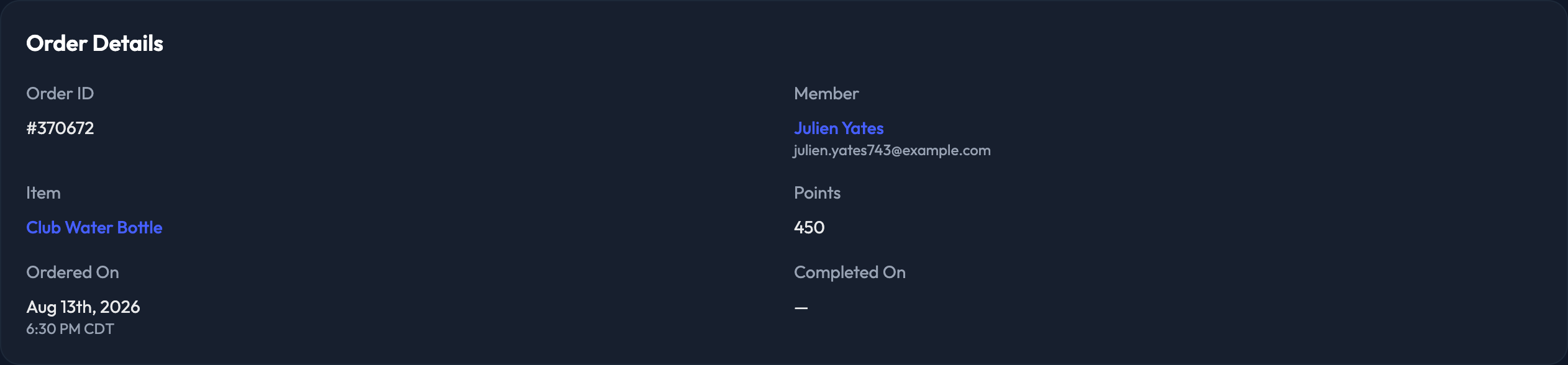
1. Open the order.
2. In the Edit Shipping card, choose the Shipping Method and enter the Tracking Number.
3. Click Save Shipping Info.
4. Click Mark Complete.
Tick the checkbox on any row and a toolbar appears above the list:
Print Packing Slips — prints slips for everything you've selected without leaving the page.
Mark as Shipped… — the carrier/tracking flow described above.
Cancel Selected — cancels each selected order.
Bulk work is queued, so it may take a moment to finish. Don't re-submit the same orders while it's running.
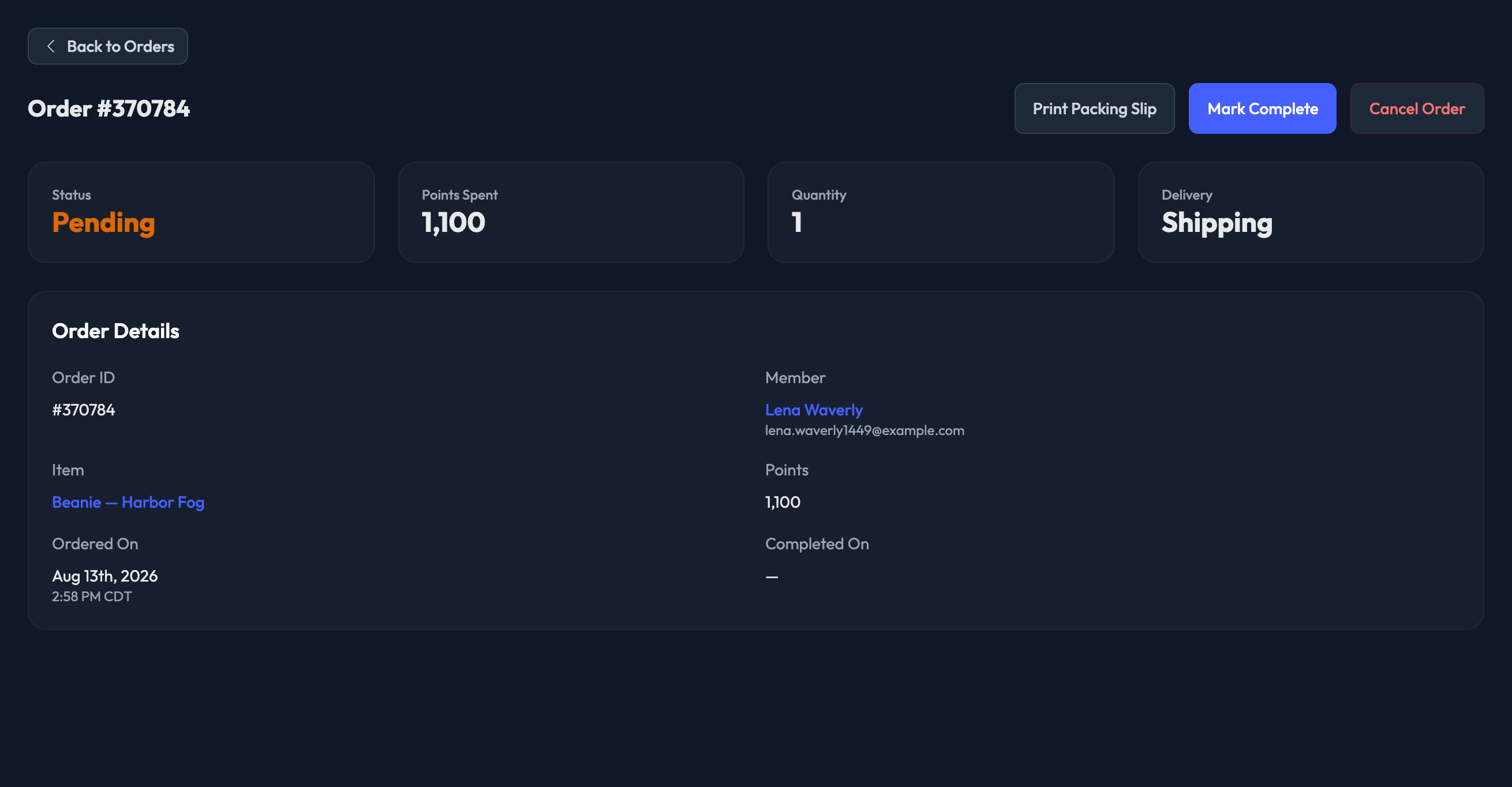
Open the order and click Cancel Order. This restores the item's stock and refunds the member's points. Cancellations are queued for processing and can't be undone.

When do orders appear on this page?
Prizes — right after a member redeems the item from the prize store.
Sweepstakes — when the sweepstakes closes and a winner is drawn. You can re-draw from the sweepstakes itself: go to Sweepstakes, filter Status to Ended, open the one you want and use the re-draw action in its Winner section.
Auctions — as soon as the auction's end date and time hits, assuming at least one member bid above the minimum.
Can I complete multiple orders at once? Yes — select the orders with their row checkboxes and use Mark as Shipped… in the toolbar.
How do I refund an order? Cancel it. The member's points are refunded and the stock goes back to your prize store.
Do members get an email when I mark an order complete? Not from Mark Complete on its own. The member's tracking email is sent by the bulk Mark as Shipped… flow.
