The Transactions, Stored Value, and Cash Back tabs only appear if you have an active POS integration with Fanmaker. If you're interested in adding POS to your program, contact your Fanmaker POC or [email protected].
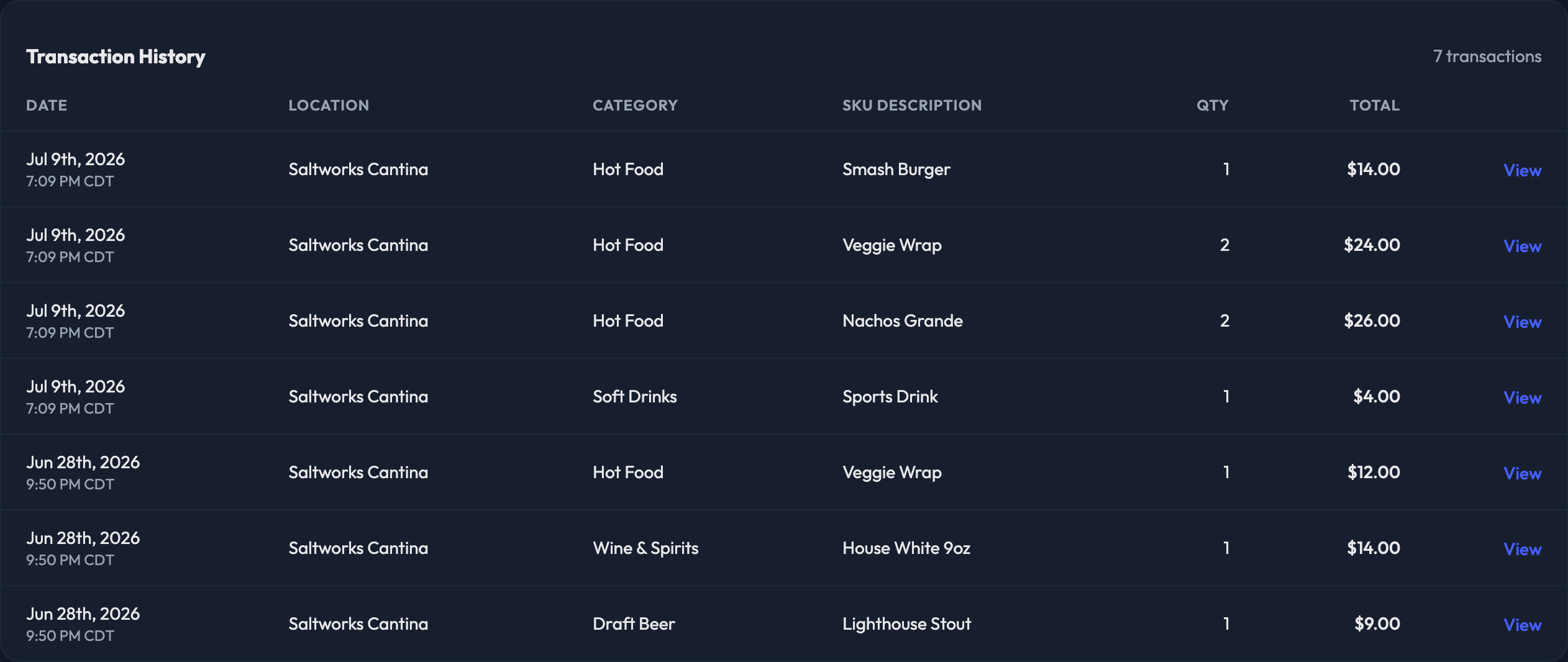
Under Transactions you'll see:
Date
Location of the transaction
Category (from the SKU category on your SKUs import)
SKU Description (from the SKU description on your SKUs import)
Qty
Total
Search across SKU, category, and transaction ID, or narrow the list with the Date and Location filters.
Click View on any row to open the full transaction — the Remote Transaction #, Terminal ID, Remote Member ID, the transaction total, and every line item with its quantity, SKU, category, and price.
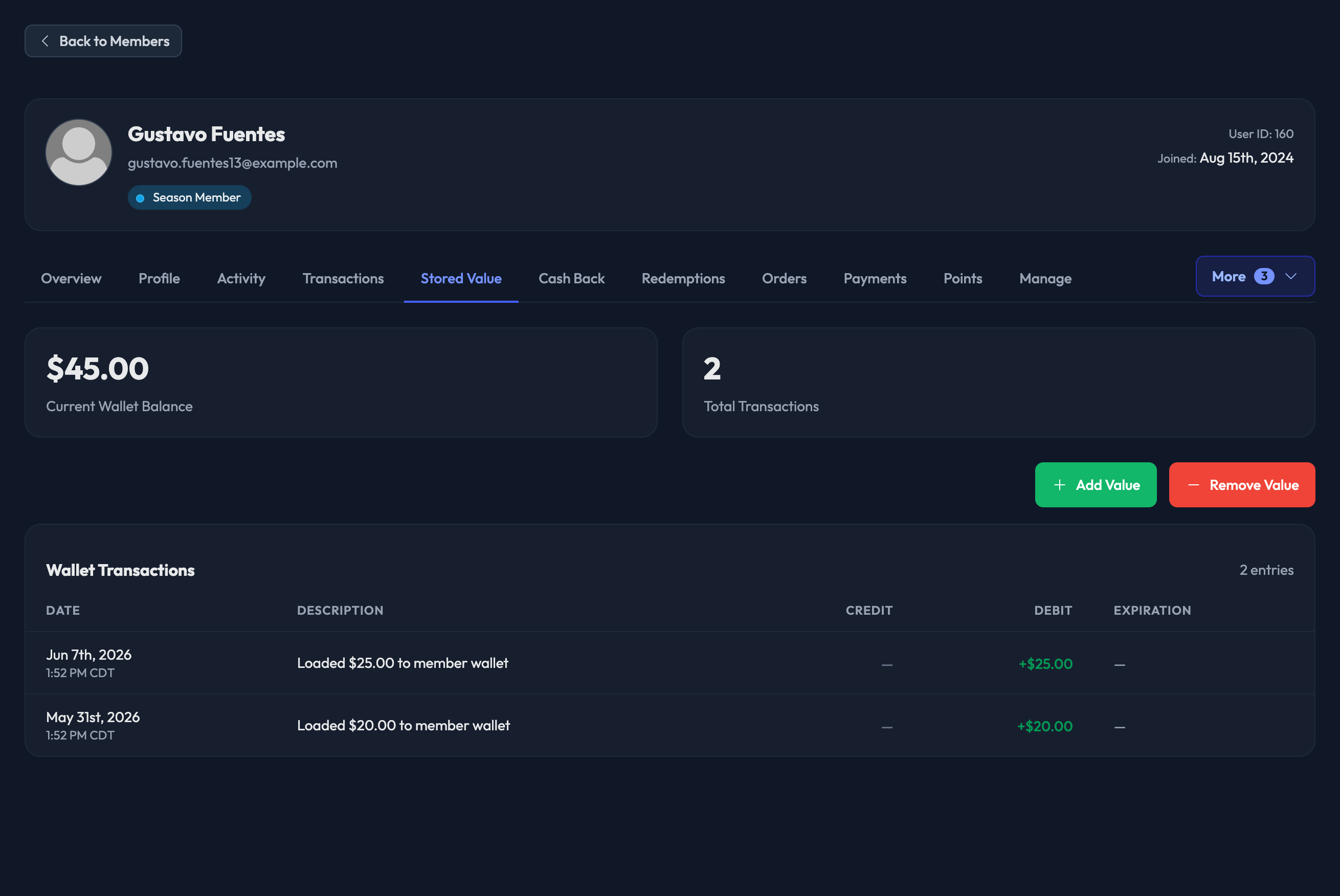
The Stored Value tab opens with the member's Current Wallet Balance and Total Transactions. Below that, every wallet entry:
Date
Description
Credit — value leaving the wallet
Debit — value added to the wallet
Expiration for that deposit
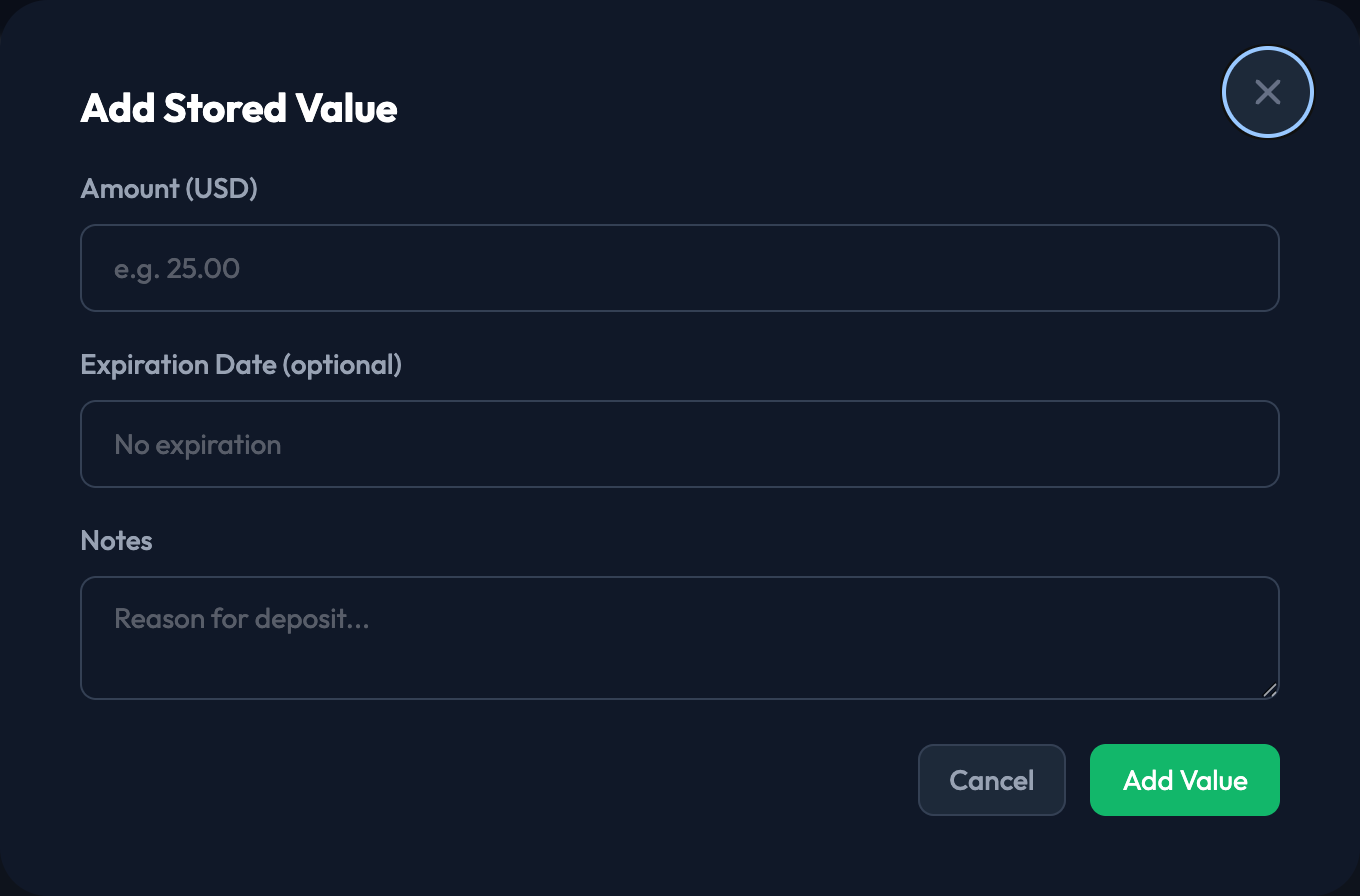
To add value by hand, click Add Value and enter:
Amount (USD)
Expiration Date (optional — leave it blank and the value never expires)
Notes
Remove Value works the same way, taking an Amount (USD) and Notes. The modal shows the current balance so you can see what you're working against.

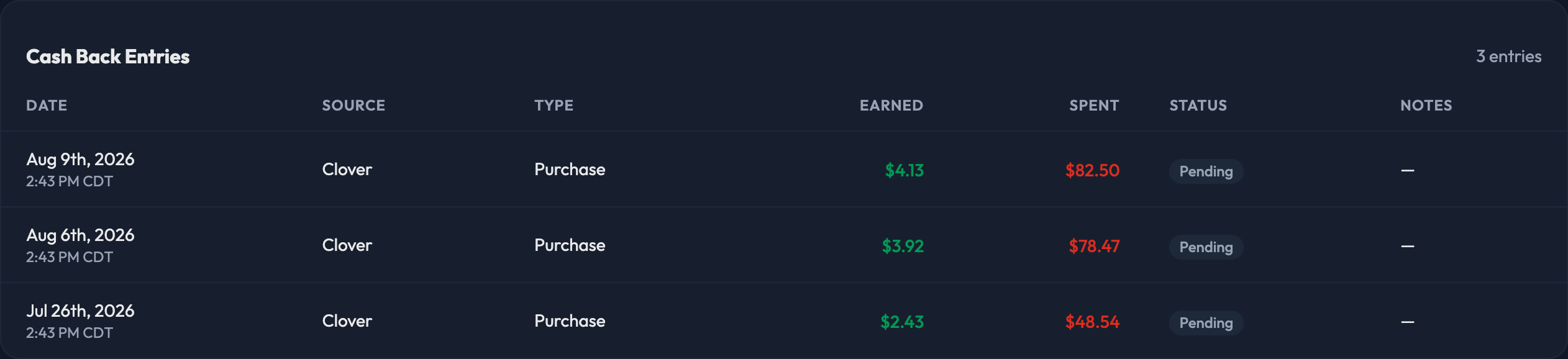
The Cash Back tab opens with Cash Back Earned and Cash Back Spent, followed by every entry:
Date
Source — where the cash back came from
Type
Earned
Spent
Status — Fulfilled or Pending
Notes
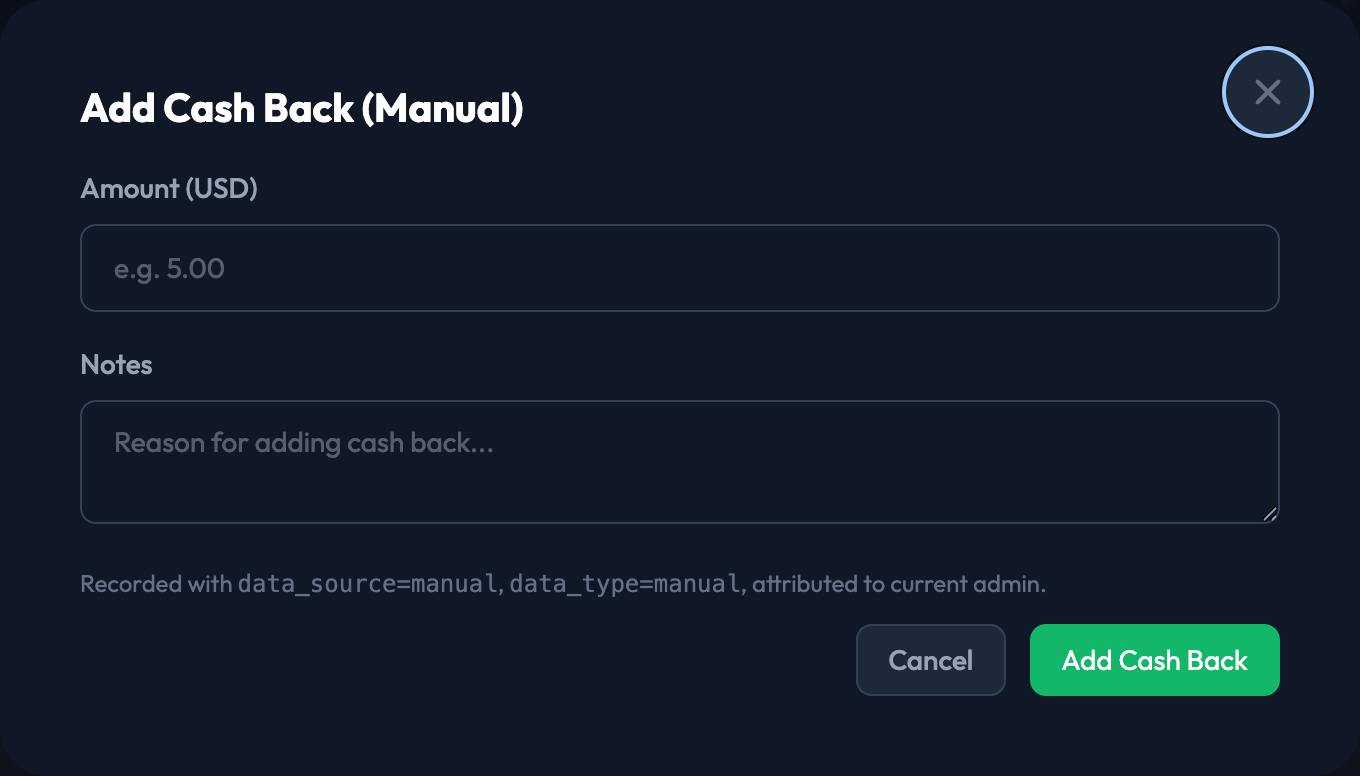
To apply cash back by hand, click Add Cash Back and enter:
Amount (USD)
Notes
The entry is recorded against your admin account so it's clear who added it.