
Appeals are reviewed per event. Open Events › Events in the admin, pick the event, then click "Appeals".
The "Appeals" button is on the event's dashboard and in the event's row actions in the list, so you can get there either way.
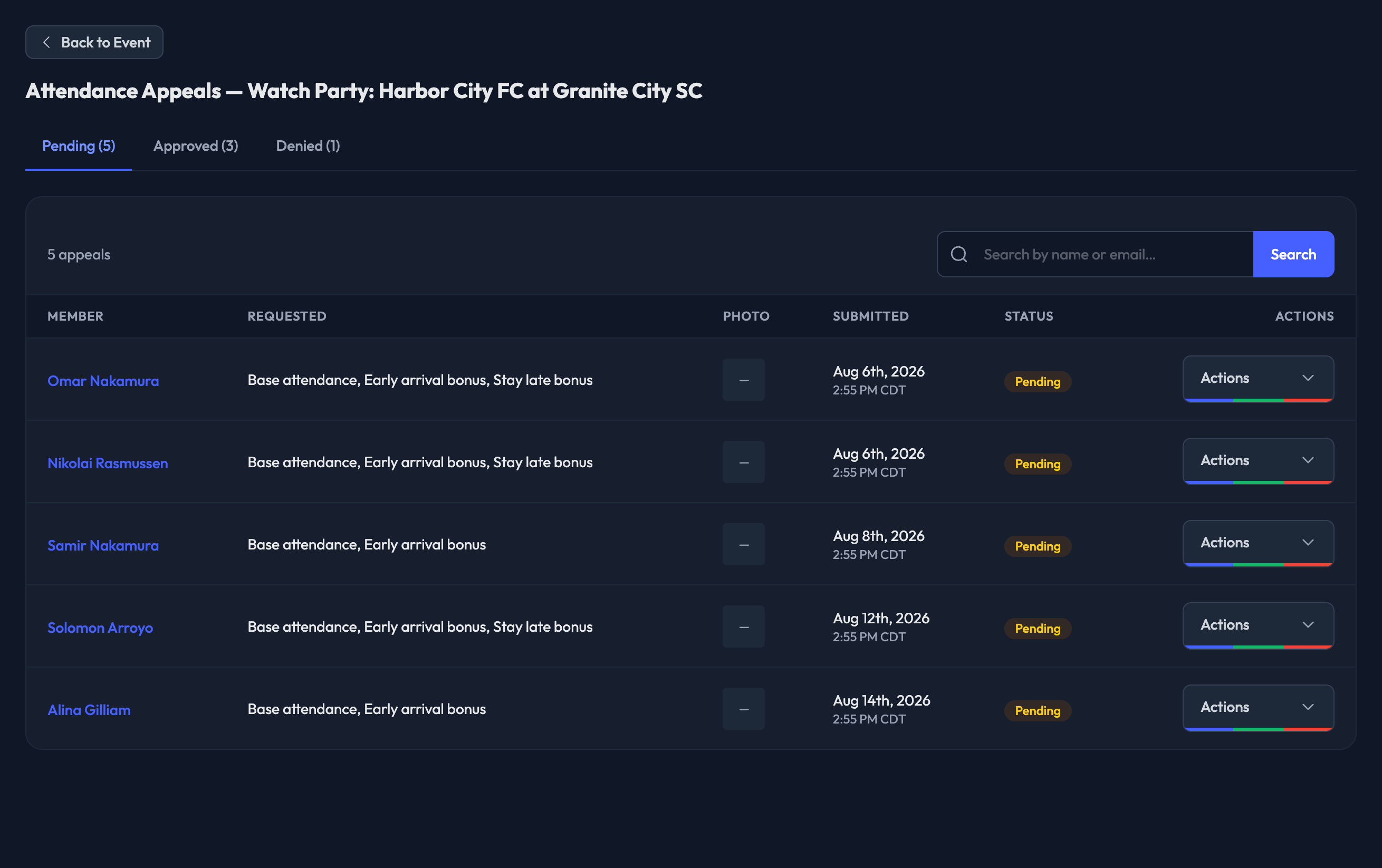
The queue opens on Pending, with Approved and Denied as the other two tabs. Each tab shows a live count, and there's a search box for finding an appeal by name or email.
What You'll See
Each row shows:
The member who submitted the appeal — click their name to open their profile
What they requested — base attendance, early arrival bonus, or stay late bonus
Their photo, as a thumbnail
When they submitted it
The status — Pending, Approved, or Denied
Click the photo thumbnail to open it full size without leaving the queue. Approve and Deny are right there in that window, so you can judge the evidence and decide in one place.
Reviewing an Appeal
Open Review from a row's actions for the full picture. Alongside the photo you'll see the attendance record the member already has for this event — arrival, time at event, check-in methods, points from logs, and every individual check-in log.
That record is the point of the page: no record at all is the normal case for a genuine appeal, and approving it creates the check-ins.

Approving and Denying
Only pending appeals can be acted on. Approve and Deny are available three ways — the row's actions menu, the photo window, and the Review page.
Approve creates the attendance check-ins for the member, and they receive the points.
Deny closes the appeal, and the member does not receive points.
Both actions ask you to confirm first. To look back at earlier decisions, switch to the Approved or Denied tab.