The Imports page is where you load data into Fanmaker in bulk. You'll find it in the admin under Reports & Imports › Imports, at app.fanmaker.com/admin/settings/imports.
The page does two jobs: starting a new import at the top, and keeping the record of every import you've run underneath.
Starting an import
Pick what you're importing from the What are you importing? selection. Your program's own list appears there — some import types only show up when the matching feature is switched on for you.
Once you've picked a type, the page fills in with everything that import expects: the columns it takes, which column has to come first, notes worth reading before you run it, and a worked example. There's also a Download example CSV button that hands you a file with every column already in the header row and one example row to replace.
Then click New Import, drop your file in, and read the review that comes back before you commit to it.

See more info in New Upload.
Your import history
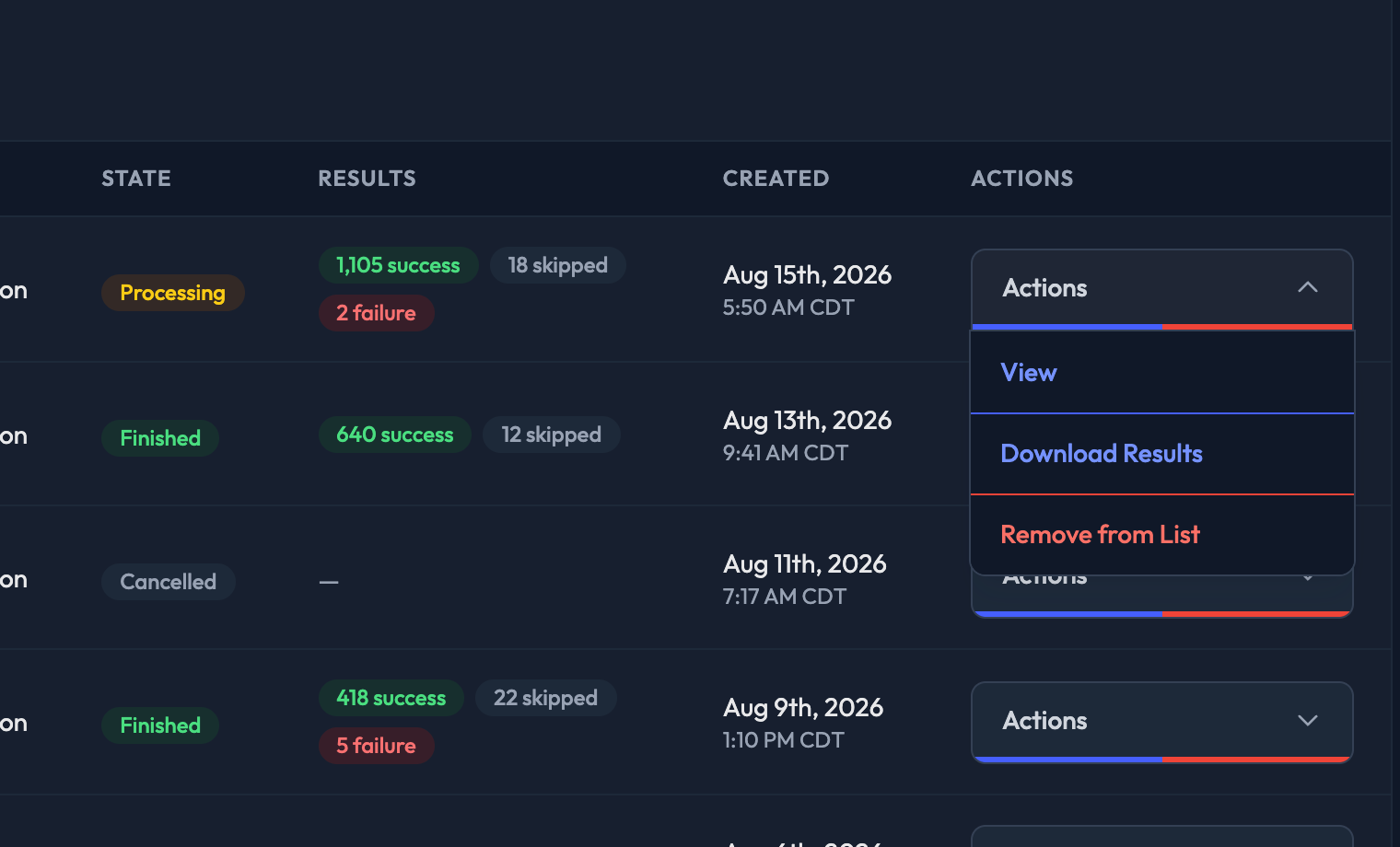
Every import you've run is listed below, newest first, with:
ID — the import's number, with the name of the file you uploaded underneath. Click the filename to download the exact file that was imported.
Type — which import it was
Admin — who ran it
State — where it got to
Results — how many rows succeeded, failed or were skipped
Created — when it was started
Click View in the Actions menu to open an import and see the detail.