Leaderboards offer a fun way to let your members compete against each other and see their rank against the rest of the program. Create and manage them at Design & Content › Leaderboards in the admin.

Click Add Leaderboard to start a new one.
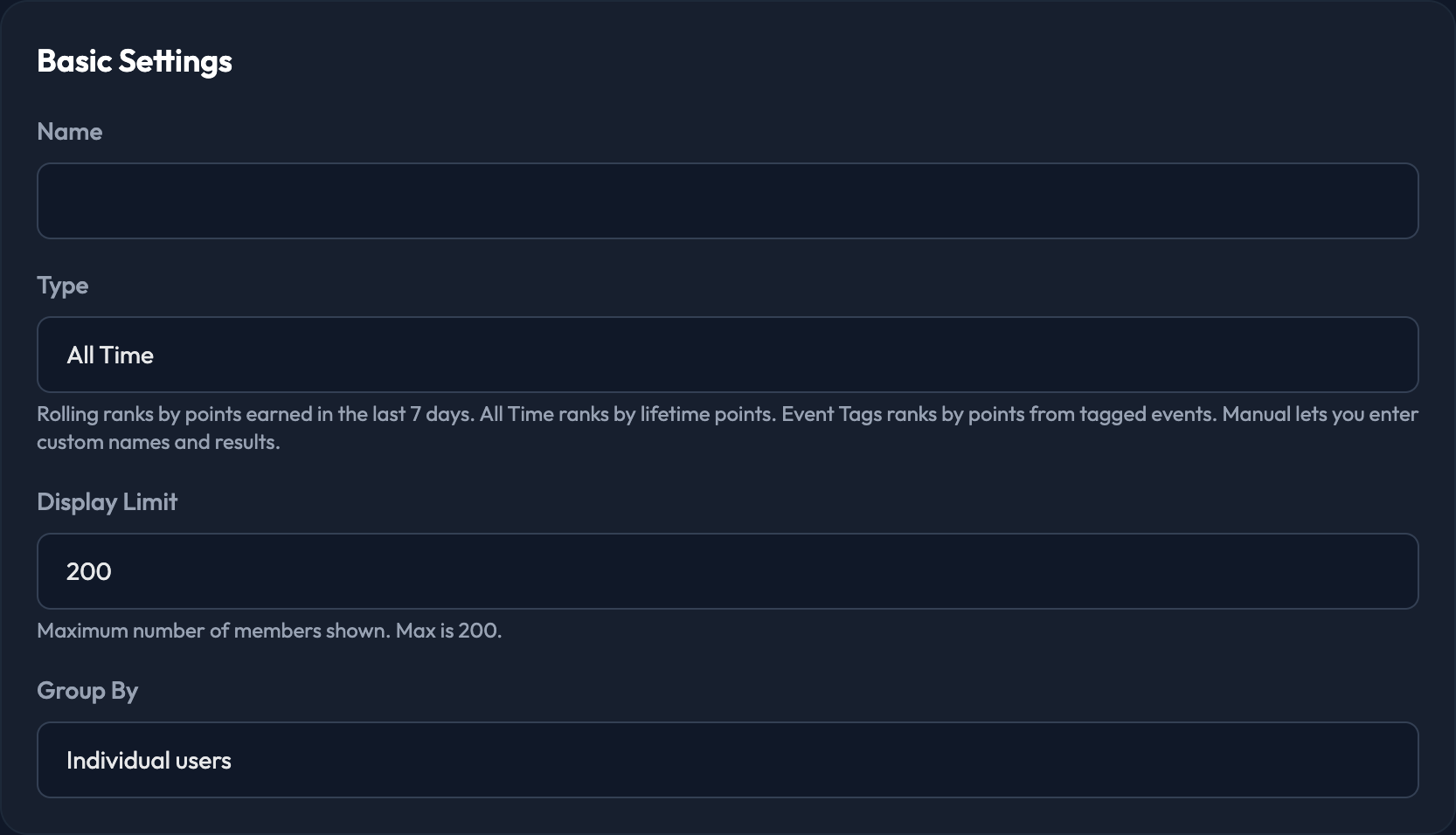
1. Enter the Name of the leaderboard.
2. Select the Type.
All Time - ranks members by lifetime points.
Rolling (last 7 days) - ranks members by points earned in the last 7 days. A great way to keep the leaderboard fresh and make sure new members are rotating through.
Event Tags - ranks members by points earned from events carrying any of the tags you choose.
Manual - lets you enter custom names and results yourself, rather than having Fanmaker rank anyone.
3. Set the Display Limit — the maximum number of members shown on the leaderboard. The maximum is 200.
4. Choose how the lines are grouped with Group By.
Individual users - the default. Each line is an individual member. This is the traditional leaderboard.
Tags - groups of members compete against each other, ranked by group average.
Followed Topics - groups of members following specific topics compete against each other, ranked by group average.


Visible to members controls whether the leaderboard shows up in your program at all. Leave it unticked while you're still setting things up.
Show out-of-limit members their own rank — when this is on, a member ranked below the display limit still sees their own position pinned at the bottom of the leaderboard in the app. It only applies to All Time and Rolling leaderboards.

To restrict a leaderboard to a segment of your members, use the User Tags section. It's available on All Time and Rolling leaderboards.
1. Tick Restrict to tagged members.
2. Add the tags of the members you want to limit the leaderboard to. Leave it empty to include everyone.
3. If you want groups competing rather than individuals, set Group By to Tags (group average) back in Basic Settings.
In that case you'd list all of the fraternity and sorority tags under Restrict to tagged members, and select Tags (group average) in the Group By dropdown. For it to work, your members need to be tagged correctly by the house they belong to.
For example, if you have students, alumni and general fans in your program, each tagged by the group they belong to, you could run three All Time leaderboards — one per group: All Time Student Leaderboard, All Time Alumni Leaderboard and All Time General Fan Leaderboard.

Tick Restrict by topic interest
Add the tags of the members you want to limit the leaderboard to
If you want groups competing rather than individuals, set Group By to Followed Topics (group average) back in Basic Settings.

On an Event Tags leaderboard, add the event tags here. Members are then ranked by the points they earned from events carrying any of those tags.
On a Manual leaderboard, add up to 10 entries by hand. Each row takes a Display Name and a Result — for example J. Smith and 320 pts. Rank is assigned by row order, so the top row is 1. Use + Add Entry to add a row and Remove to take one away.
When you're finished, click Create Leaderboard.
