This guide walks you through loading TDC users into Fanmaker and linking their TDC IDs. It's two imports: a Create Members load to add the accounts, then a Rewards Identifier load to attach each member's TDC ID.
TDC IDs have to be in Fanmaker before the system can award TDC points when fans scan tickets at events. Without a TDC ID linked to a member's account, points can't be attributed to them. Get both steps done before any ticketed event takes place.
A list of member email addresses
The corresponding TDC IDs
Access to Reports & Imports > Imports in the admin
A spreadsheet application such as Microsoft Excel, Google Sheets, or Numbers
If your fans aren't in Fanmaker yet, import them first.
Create a CSV with at least one column: email.
email — the email addresses of everyone you're adding.

1. Save the file as a CSV — any CSV export your spreadsheet app offers will do — or leave it as an Excel .xlsx workbook and upload that.
2. Go to Reports & Imports > Imports in the admin.
3. Choose the Create Members import type and upload your file.
Once the members exist, link each one to their TDC ID.
Create a CSV with three columns: email, identifier, and identifier_type.
email — must match the addresses already loaded in Fanmaker. This has to be the first column; it's what identifies the member.
identifier — the TDC ID for that member.
identifier_type — enter tdc_id on every row.

1. Save the file as a CSV, or upload the Excel .xlsx workbook as it is.
2. Go to Reports & Imports > Imports.
3. Select Rewards Identifier as the import type.
4. Upload the CSV file.
Attendance scans have to know which TDC event they belong to.
1. Go to Events > Events and open the event you want to track attendance for.
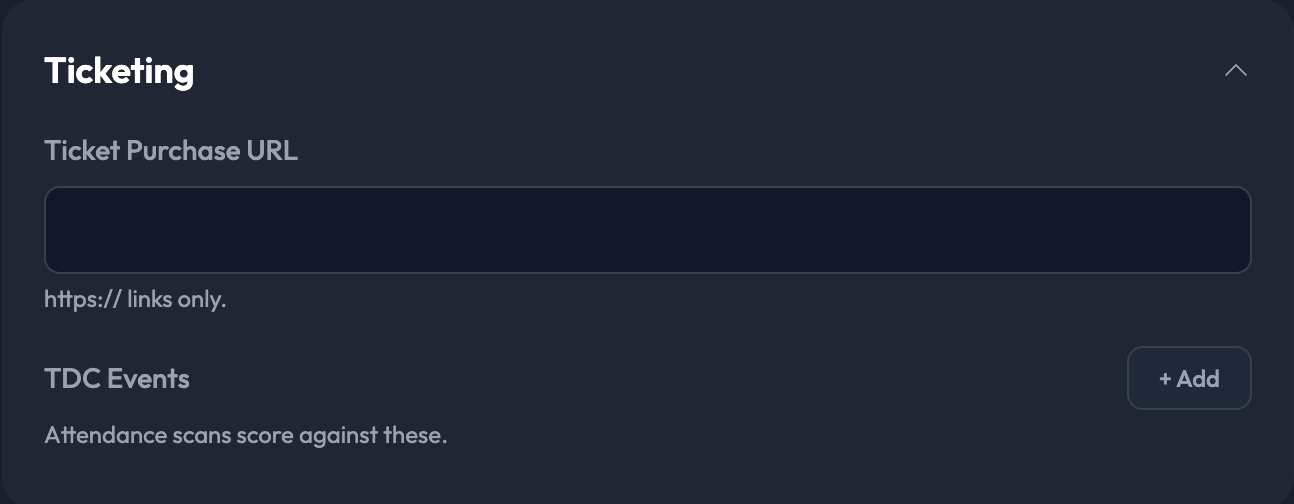
2. Find the Ticketing section of the event form.
3. Beside TDC Events, click + Add.
4. Enter the TDC Event ID and save the event.
You can add more than one TDC Event ID to a single Fanmaker event — attendance scans score against all of them.
No special save format is needed. Any CSV export works, and Excel .xlsx files upload directly.
All uploads go through Reports & Imports > Imports.
Fans receive a one-time alphanumeric code by email on their first login — no manual password setup is needed.
Make sure the email addresses in Step 2 match the ones loaded in Step 1.
Don't skip Step 3. Members can be perfectly loaded and still score nothing if the event has no TDC Event ID on it.
