Create a new event here in the Admin
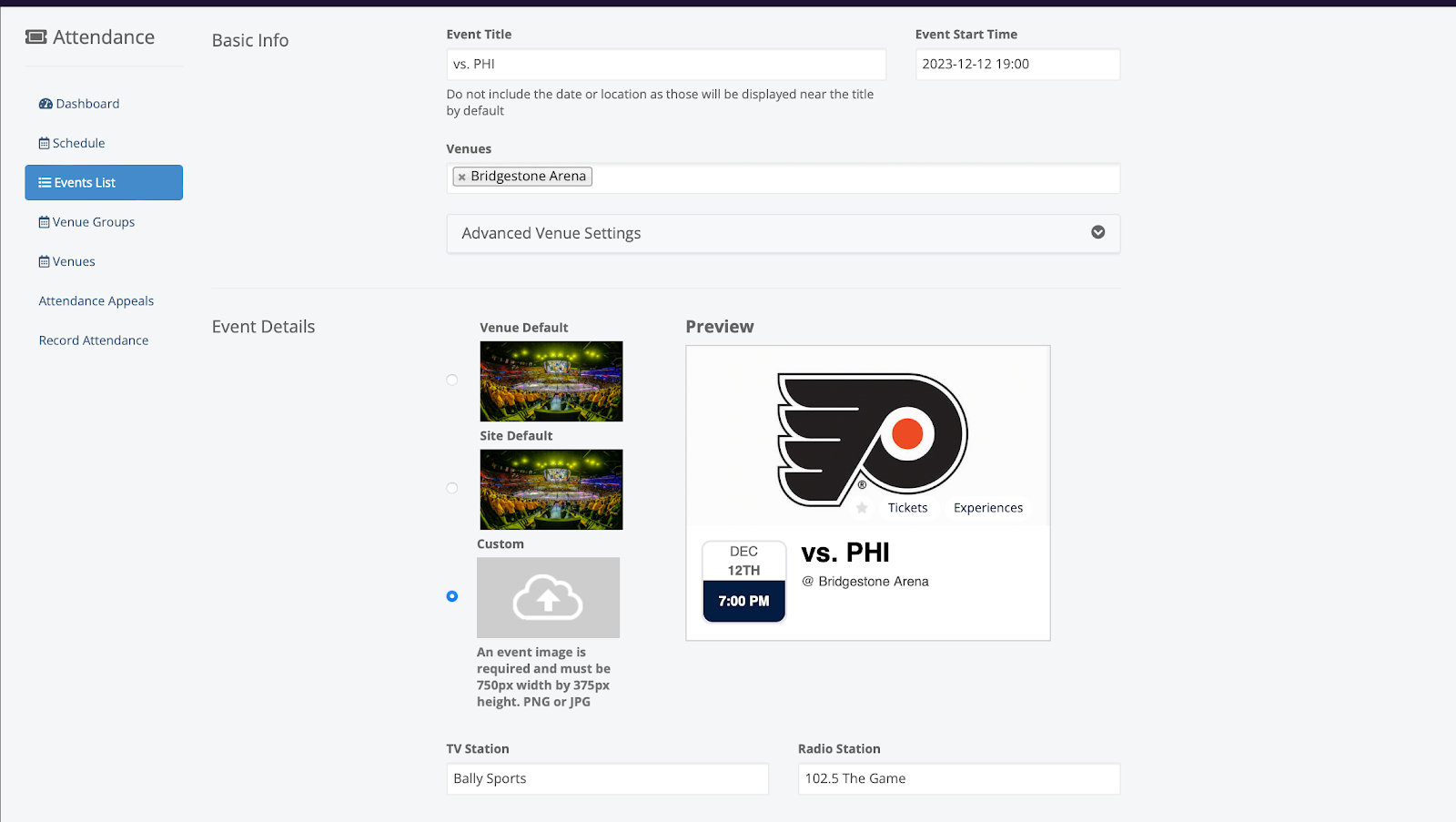
1) Enter event title.
2) Enter event start time.
3) Add the venue, where the event will take place. (This Venue must be created beforehand in the Venues tab. Find instruction here.)

1) Select an image for your event. Can be custom for each event or select the site or venue default images.
2) Add the TV and Radio Stations members can watch and listen to the event if applicable.(Optional)
3) Add a video or audio stream for the event if applicable by adding a button.(Optional)
4) Add the Ticket Purchase URL to promote tickets for the event.(Optional)
5) Add any event tags for the event if applicable.(Optional)
6) Add an event description for any additional details. This may be a good spot if you have any special promotions happening during this event.(Optional)
1) Toggle the CrowdCameo feature to be on for this event.(Optional)
2) Enter a Gallery Name.
3) Enter the total number of points a member will earn for submitting a photo.

1) Toggle Attendance on. (Optional)
2) Enter the earliest time members can earn points for attending this event.
3) Enter the latest time members can earn points for attending this event.
4) Enter total number of points members will receive for attending this event.
5) Enter how many points to award members for arriving early and how early they must arrive to earn Early Arrival Bonus points. (Optional)
6) Enter how many points to award members for staying late at the event and how late they must stay to earn Stay Late Bonus points. (Optional)
7) Select "Yes" to Award Base Attendance for Each scan if you would like members to earn the base amount of points for each ticket scanned. OR Select "No" if you want members to only earn the base attendance, no matter how many tickets are scanned. (Optional)
8) Enter the Event code for this event if you have your ticketing system integrated with your program.
9) Enter Advanced Attendance Settings if you’re looking to incentivize members to check into the event in a particular method. (Optional)
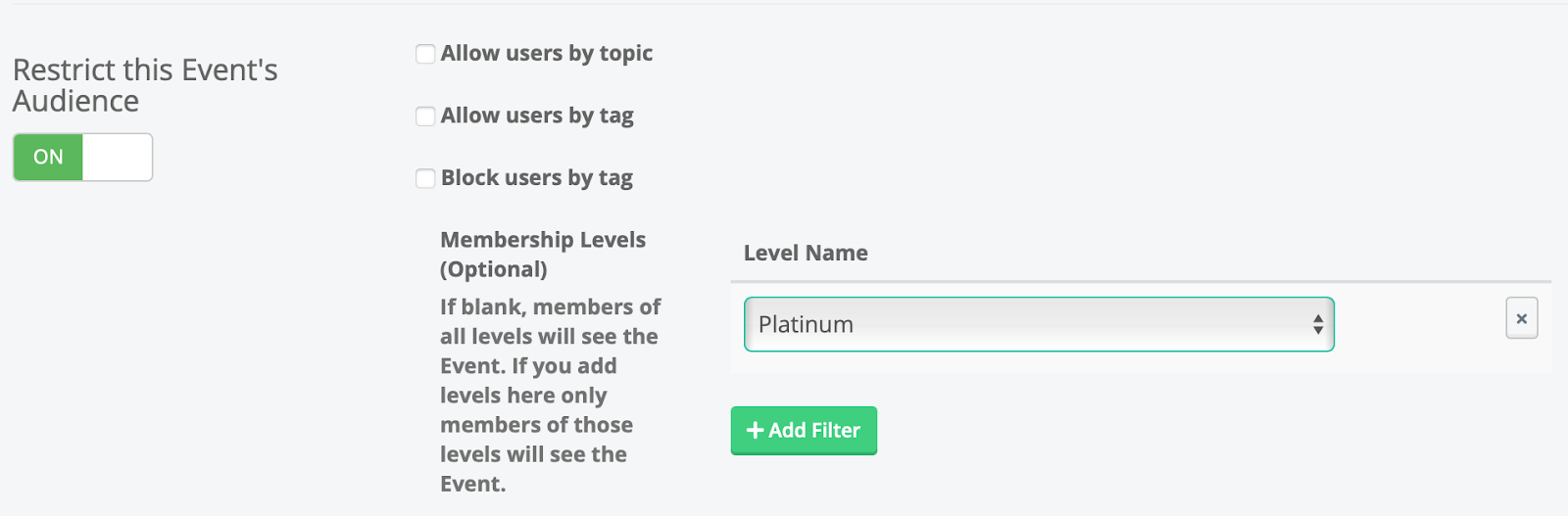
With event visibility filters, you can segment by tags or membership levels! This means you can create check-in experiences just for Season Ticket Members, premium tiers, or students, ensuring only the right fans can access certain events. (Optional)
1) Toggle on the ability to earn points for watching the event. (Optional)
2) Enter how early before the start of the event members can earn watch points.
3) Enter how late after the start of the event members can earn watch points.
4) Enter total number of Initial Watch points for the event.
5) Add additional opportunities for members to earn points if they continue to watch this event. (Optional)
6) If you want to add a promo code to your event that will be promoted through your broadcast, add that here. This promo code will only be active for the duration of the event, unless changed from the Codes section of the Admin portal.
Enter the text of the push notification you would like members to receive for attending the event.
Promotional Text will be displayed on the event card in the action stream or schedule tab. (Optional)
