
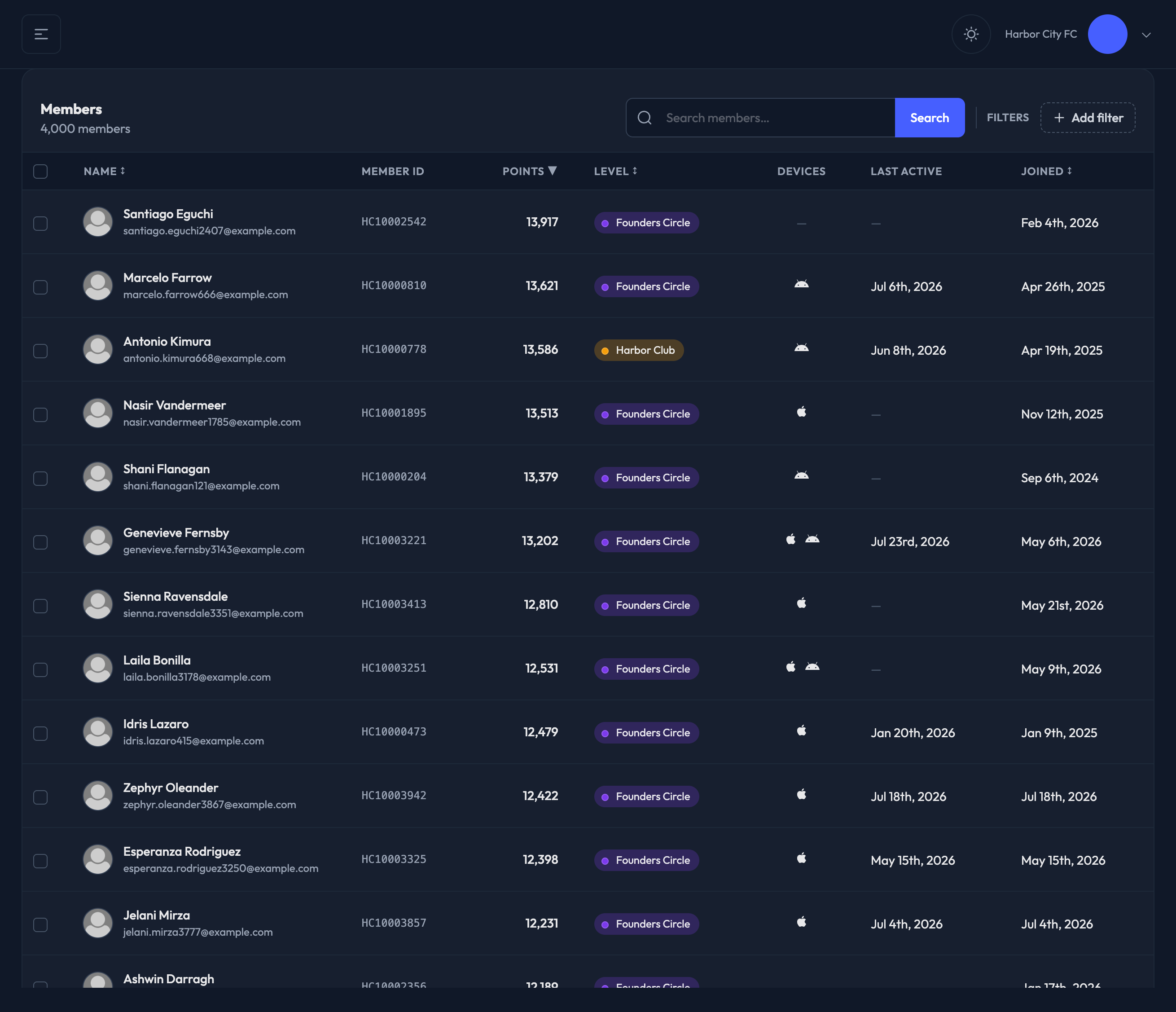
Via the Members page — Members in the admin — you can:
Search for a member by name, email or member ID, then open their member profile
Filter the list using the Filters chips beside the search box
Sort by Name, Points, Level or Joined by clicking the column header
Download a report of all members, or of just your filtered selection
Send a Push or Email notification
Filters
Level — filter by membership level. Levels are managed under Settings › Memberships & Billing.
Status — Active or Inactive.
Points — is at least, is at most, is exactly, or is between two values.
Tags — include or exclude members carrying the tags you pick (Student, Alumni, Fan, Season Ticket Holder, Donor, and any others your program uses).
Filters combine, so you can ask for "Gold level, tagged Student, at least 500 points" in one go.
The List
Each row shows the member's Name (with their email underneath), Member ID, Points, Level, Devices, Last Active and Joined date.
The count under the "Members" heading tells you how many members your current filters match, out of your total.
